Are you having issues with your TCL TV? Performing a factory reset might help fix these issues.
A factory reset erases all data, installed applications, and settings on your TV, restoring it to its original, out-of-the-box default configuration. It can be an excellent troubleshooting solution for your TV, especially when dealing with persistent issues.

In this guide, we will look at ways to factory reset your TCL TV, as well as other solutions to try before performing a complete reset.
Reasons for factory resetting your TV
A factory reset can be an effective solution for several issues you may be experiencing with your TV. Below is a look at some of the key reasons for factory resetting your TCL TV:
- Persistent software glitches: A factory reset can help fix persistent software issues with your TCL TV, including freezing, lagging, apps constantly crashing, and cache-related errors.
- Slow or unresponsive performance: A factory reset can help fix a sluggish or unresponsive TV interface.
- Post-update issues: Your TV may glitch or develop problems after a software or firmware update. In such cases, a factory reset can help fix these errors.
- Persistent network issues: You can perform a factory reset on your TCL TV if you are experiencing persistent network issues, for example, if your TV is refusing to connect to a Wi-Fi network or frequently loses Wi-Fi connection for no reason.
- Lost credentials: You can reset your TV if you have forgotten the parental control PIN or other account passwords.
- Persistent hardware issues: Factory resetting your TV can also be an excellent troubleshooting step if you are experiencing persistent hardware problems, for example, sound or display issues.
- When planning to sell or give away your TV: Your TV could contain personal information, which can pose a significant security risk if it falls into the wrong hands. Therefore, you should perform a factory reset before selling or transferring it to another party.
How to factory reset your TCL TV
There are two ways to factory reset your TCL TV:
- Through your TCL TV’s menu
- Through a physical reset button
Below is a step-by-step guide on how to perform a factory reset with either of the techniques:
Resetting via your TV menu
To factory reset your TV via the menu settings:
- Press the Home button on your TV remote.
- Navigate to Settings > System (or Device Preferences) > About > Reset > Factory Reset > Erase everything if your TV runs on the Google TV platform.
- For Roku TV, go to Settings > Advanced system settings > Factory reset > Factory reset everything.
- Once you confirm the decision to reset, you will be prompted to enter the parental control PIN. The default PIN for most TCL TVs is 0000 or 1234.
- After entering the PIN, confirm the decision and allow the reset process to complete.
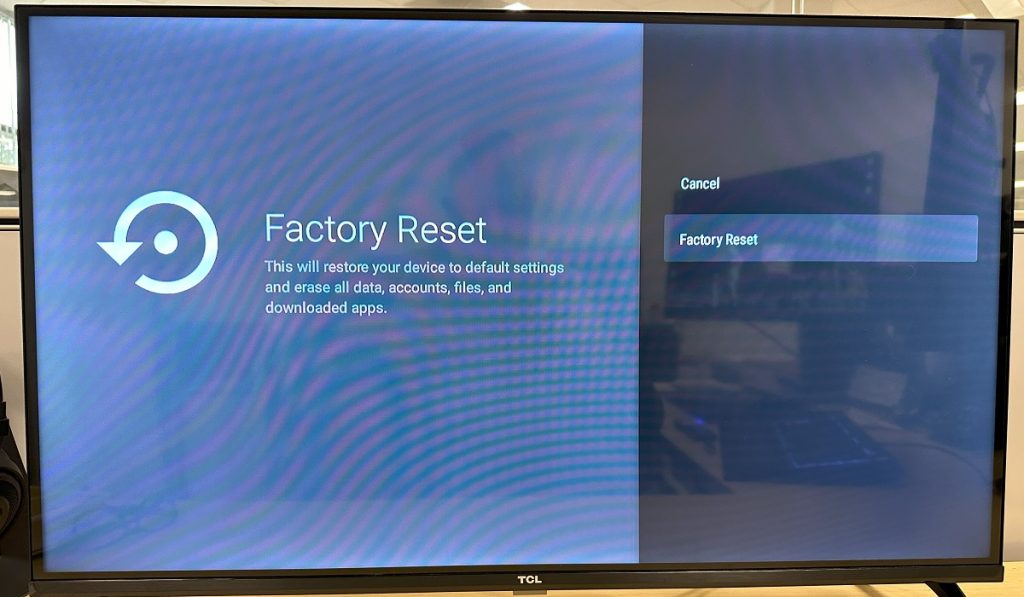
Performing a hard factory reset
Some TCL TVs come with a physical reset button, usually located on the back panel. You can use this button to perform a factory reset on your TV, especially when you don’t have a remote or cannot access the menu.
To reset your TCL TV:
- Locate your TV’s physical reset button (usually a tiny pinhole) on the TV’s back panel.
- Ensure your TV is powered on.
- Use a paper clip (or something sharp) to press and hold the reset button for around 10-30 seconds.
- Your TV will automatically reset, wiping all data and settings, then restart.
Note: After performing a factory reset, you will need to set up your TCL TV again if you plan to use it. Once your TV resets, it will restart and take you to the initial setup screen, where you can follow the on-screen instructions to complete the process.
Other troubleshooting tips to try before factory resetting
A factory reset wipes everything from your TV, which can be frustrating if you have installed apps, downloaded content, and made custom settings. Therefore, it is a last resort; you should not attempt it unless you have no other option.
Fortunately, there are several troubleshooting tips you can try to avoid the hassle of a factory reset on your TCL TV. Below is a look at some of them:
1. Restarting your TV
If you are experiencing a software issue, restarting your TV may be enough to fix it. A restart clears temporary memory (RAM), closes background apps, and resets the TV’s internal circuits, which can help clear any software glitches.
To restart your TCL TV:
- Press the Home button on your TV remote.
- Go to Settings > More Settings > Device Preferences > About > Restart, then select Restart to confirm (for Android/Google TV).
- If you have a Roku TCL TV, go to Settings > System > Power > System Restart > Restart, then confirm to complete the process.
2. Power cycling your TCL TV
Power cycling, also known as a soft reset, is another solution that can fix several issues affecting your TV without requiring a factory reset.
To power cycle your TCL TV:
- Unplug your TV from the electrical outlet, and wait about 60 seconds.
- Press and hold the TV’s physical power button (not the remote’s) for about 15-30 seconds to drain any residual power.
- Plug your TV back in and turn it on.
Power cycling your TV clears the temporary memory and system cache and resets the main board, which can fix several issues without erasing your data.
3. Updating your TV’s software
Updating your TV software is one of the top ways to fix bugs and software glitches. Therefore, before performing a factory reset, you should check whether your TV’s software is up to date and, if not, install the latest available updates.

To update your TCL TV:
- Ensure your TV is connected to the internet.
- For Android or Google TV, go to Settings > System > About > Software Update > Network Update to download and install the latest updates.
- For Roku TV, go to Settings > System > System Update > Check now and download any available updates.
You can also enable automatic updates on your TV, so the device downloads and installs new updates as soon as they are released.
Alternatively, you can download software updates for your TV from TCL’s website, copy them to a formatted flash disk, and plug it into your TV’s USB port to manually update your TCL TV.
4. Clearing cache and data
Some performance issues on your TCL TV may be caused by a full or corrupted cache, or by corrupted storage data/settings. Therefore, clearing your TV’s cache and data can help resolve performance issues without resorting to a factory reset.
To clear cache and data on your TCL TV:
- Press the Home button on your TCL TV
- Go to Settings > Apps > See all apps.
- Choose the desired app(s) from the list, then select Clear Cache and Clear data.
- You can also clear your entire TV’s system cache by going to Settings > System > All Settings > Storage/Internal Shared Storage > Cached data, then pressing OK to clear the cache.
5. Resetting the network settings
If you are having network issues, you can reset the network settings without wiping other data on your TCL TV.
To do this:
- Go to Settings > System > Reset > Network Reset and confirm (for Android or Google TV).
- For Roku TV, go to Home > Settings > System > Advanced System Settings > Network connection reset and confirm.