Automatic software updates are supposed to improve smart TVs. However, recent Roku updates on TCL TVs have made things worse for people who watch over-the-air channels.
These updates often cause memory problems, change how remote buttons work without notice, fill your channel guide with internet channels, and make the live TV pause feature freeze.
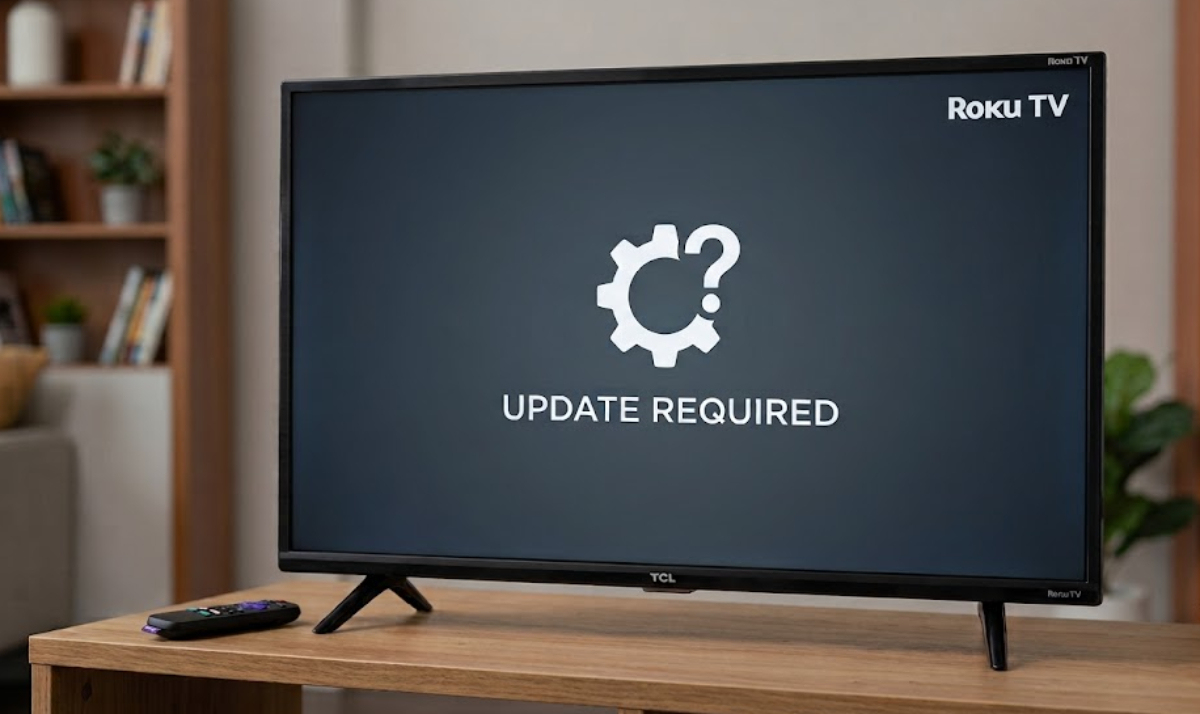
If recent updates have disrupted your free antenna channels, use this step-by-step guide to get things working again.
1. Live TV pause freezes when rewinding broadcasts
When you plug a USB flash drive into your TV, you can pause and rewind live antenna shows. But after recent updates, memory overload can make the video freeze when you try to play or rewind.
How to fix it:
- Perform a cache reset
Clearing temporary files restarts your TV and removes any damaged video files.
- Grab your remote control and go to the Home screen.
- Press Home 5 times.
- Press Up 1 time.
- Press Rewind 2 times.
- Press Fast Forward 2 times.
- Wait 15 to 30 seconds.
The screen will scroll rapidly and automatically restart.
- Refresh and reformat the USB drive
If clearing the cache does not fix the freezing, the update might have damaged the flash drive’s index file.
- Unplug the USB flash drive from the back of the television.
- Re-insert the drive firmly into the USB port.
- Select Set up Live TV Pause on the screen prompt (or go to Settings > TV Inputs > Live TV > Live TV Pause).
Let the TV reformat the drive so it can create a fresh storage space.
2. Replay button switches channels and wipes saved video
The instant replay button on your remote used to go back ten seconds. Now, after updates, if the TV loses the video signal even briefly, pressing replay switches to the previous channel and erases your paused video.
How to fix it:
- Press the Home button on your remote.
- Navigate to Settings > System > Power.
- Select Fast TV Start and set it to Turn Off.
- Turn off the television using the power button, wait 30 seconds, and turn it back on.
Turning off “Fast TV Start” makes your TV do a full reboot each time you turn it off. This helps prevent memory bugs that can cause remote button problems during live TV.
3. Internet streaming channels cluttering local channel guide
Updates often reset your guide settings and add lots of unwanted streaming channels to your antenna lineup.
How to fix it:
- Press the Home button on your remote.
- Go to Settings > TV Inputs > Live TV.
- Select Hide streaming TV channels.
- Check the box next to Hide all.
- Crucial Next Step: Go to Settings > System > Power > System restart > Restart.
Restarting your TV right away makes it rebuild the guide menu without keeping the streaming channels.
4. Antenna channels refuse to load without internet
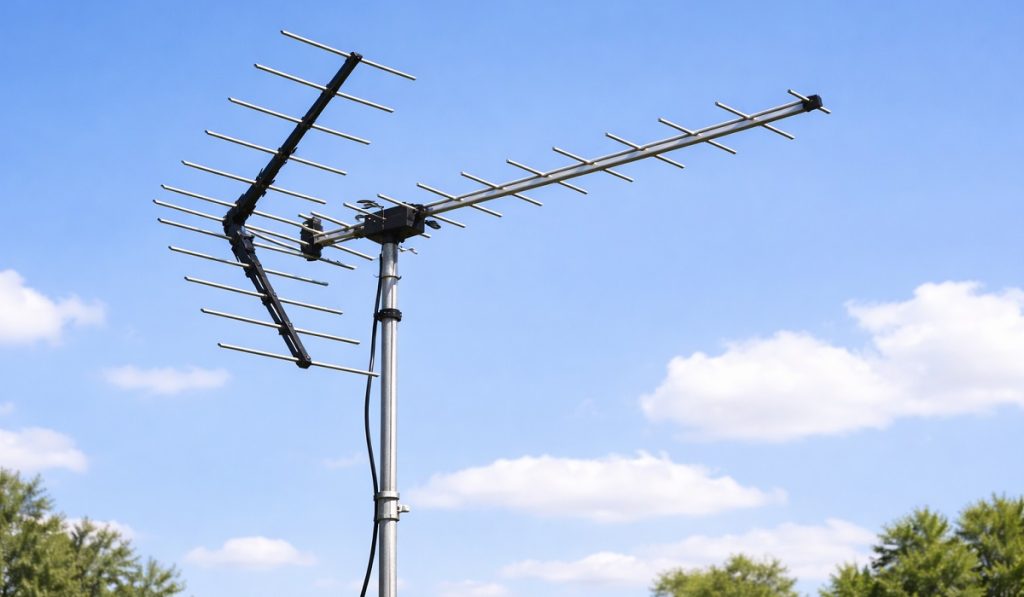
A software bug can make local channels freeze or crash if your TV loses its internet connection.
How to fix it:
- Disconnect your Wi-Fi network completely by going to Settings > Network > About and choosing Set up new wireless connection (or briefly unplug your home router).
- Go to Settings > TV Inputs > Live TV > Scan for channels.
- Run a complete fresh antenna channel scan while the TV is entirely offline.
After the scan is done, your TV creates a new channel list on its own. You can then watch broadcast channels without needing the internet.
5. Stop future Roku updates
Manufacturers do not let you turn off automatic updates while your TV is on Wi-Fi. The only sure way to stop future updates from changing your settings is to keep your TV offline for good.
- Go to Settings > System > Advanced system settings > Factory reset > Factory reset everything.
- Let the screen reset completely.
- When the setup screen asks you to connect to a Wi-Fi network, select Skip this step or Connect to the internet later.
- Connect your antenna and run a channel scan.
Now your TV will work like a regular display, starting right on your antenna channels without remote changes, ads, or surprise update problems.