When you try to add a new channel pack, premium network, or extra feature to your Sling TV account, you expect the checkout to work smoothly. But for many users, the screen freezes or refreshes and shows the error message: “Failed to initialize change sub cart.”
When this happens, your account may not work as expected. Sometimes it asks you to finish the process on the website, or it may not recognize your active subscription at all.
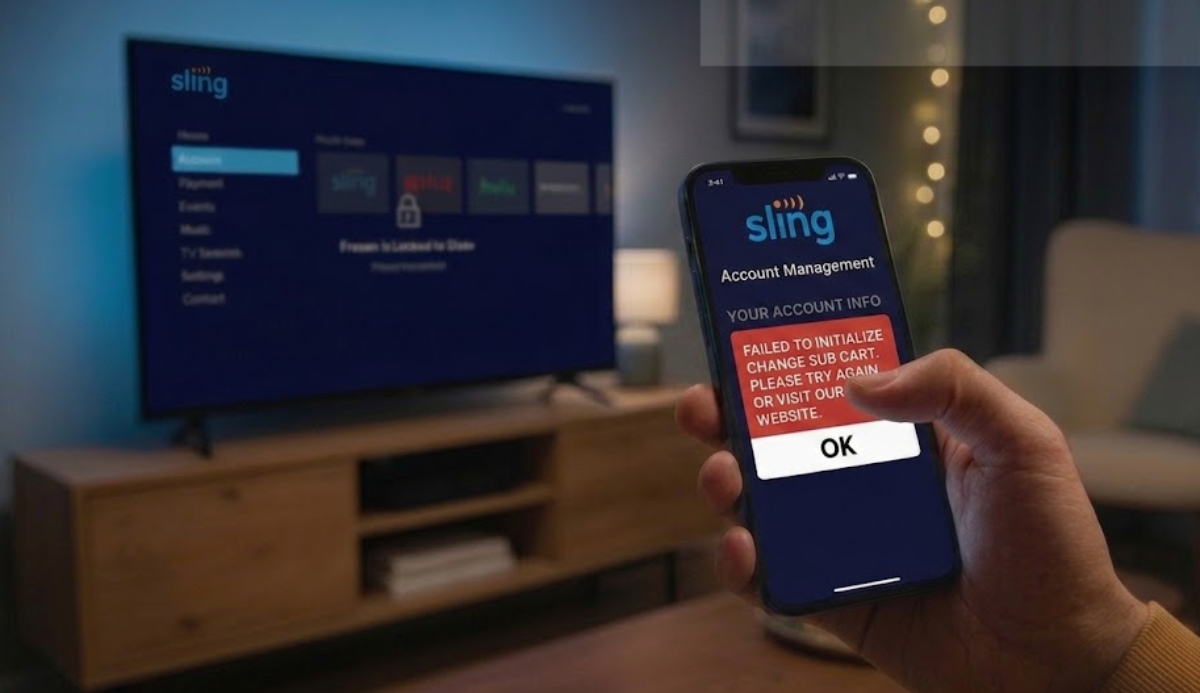
This situation might make you consider starting a new account. To make things more difficult, customer service often cannot add the channels for you, so you may feel stuck.
Users on the Sling TV Reddit community have found the main cause of this issue. It is not related to your internet connection, streaming device, or a local outage.
The problem is caused by a conflict with certain digital payment methods, especially Apple Pay.
Here is what causes the error and the steps you can take to fix your account and change your subscription.
Why is the subscription cart failing?
This error happens because Sling’s website checkout system cannot connect properly with your saved billing information. When you try to add a new service, Sling creates a temporary “cart” to figure out your new bill.
If your account uses a third-party mobile wallet like Apple Pay, Sling’s system sometimes cannot connect with the wallet to approve the changes.
Instead of processing the upgrade, the system cancels the request and shows the “failed to initialize” error.
At first, some users thought the bug was caused by signing up for Sling through internet bundle promotions, like Google Fiber setup packages.
However, community troubleshooting showed that these bundles were not the cause. The real problem is related to how your monthly automatic payments are handled.
Fix the ‘Failed to Initialize Change Sub Cart’ error
Because this glitch locks the subscription portal, you cannot fix it from the Sling TV app on your Roku, Amazon Fire TV, or Apple TV. You need to use a web browser to solve the problem.
Follow these steps to fix the error and update your channel lineup:
- Go to the official Sling TV website using a computer or your smartphone’s mobile browser.
- Enter your credentials to access your current active account.
- Go to your account settings dashboard and locate the Billing Information section.
- Change your payment method from Apple Pay or your digital wallet to a regular credit or debit card.
- Confirm the new card details and ensure it is set as your primary billing method.
- Once your new card is saved, navigate back to the “Change Subscription” page.
The “Failed to initialize change sub cart” error should go away, and you will be able to add new channels and check out as usual.
What if you want to keep using your preferred payment method?
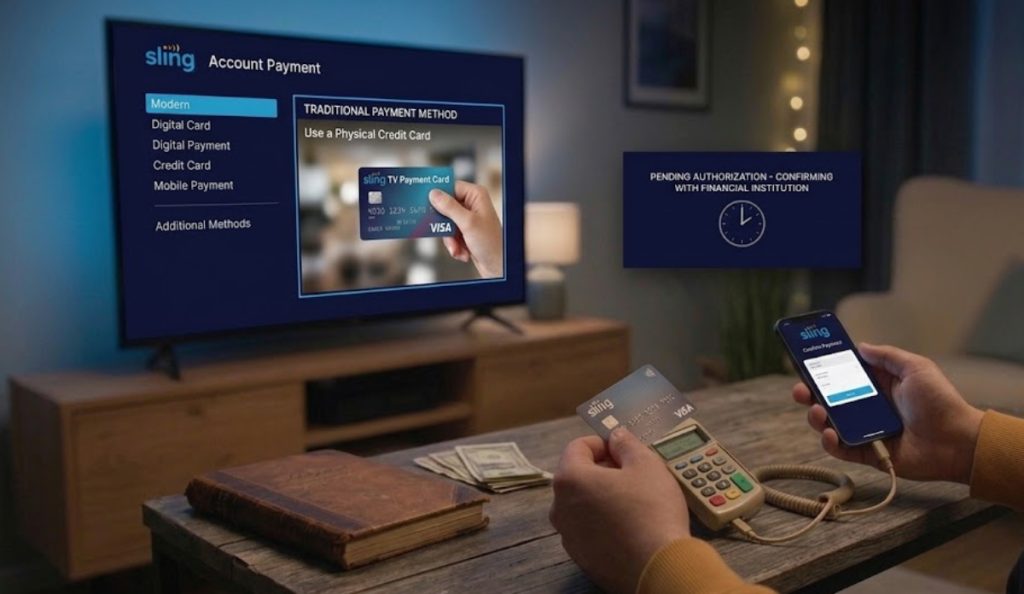
If you do not want to keep your card details on file, there is a quick workaround.
Switch your payment method to a regular credit card just long enough to fix the error and complete your subscription upgrade.
After your new channels are active and your cart is clear, you can try switching your main payment method back to your preferred mobile wallet in your account settings.
If you still have account issues or changing your payment method does not fix the error, you may need help from higher-level technical support to reset your account.
You can contact the Sling TV support team through the Help Center to ask for further help with your subscription cart.