For local stations in your area, the most reliable option we recommend is through your HDTV antenna. On top of that, your Roku already offers free streaming options through its own “The Roku Channel.”
Here are various ways to access local channels on Roku TV.

Ways to access local channels on Roku TV
Here are all the ways to get these stations to your TV set:
1. Use an HDTV antenna
Your set most likely has a built-in tuner. This means you can connect an antenna straight to the TV. Upon running a channel scan, you will watch any over-the-air stations your home can receive.
Use this guide:
- Get an indoor antenna or an outdoor HDTV antenna.
- Point it in the right direction.
- Plug it into the ANT/CABLE input on the back of your Roku TV.
- Press Home on your Roku remote.
- Select Live TV.
- Follow the on-screen setup and channel scan.
- Let the scan finish. Do not stop halfway.
- Open the Live TV guide to see the channels Roku found.
Tip: Check your address on the FCC reception map. This will help you choose the right antenna type.
2. Use Roku’s Live TV guide
Roku TV is not just for antenna channels. Roku also builds free live streaming channels into its Live TV experience.
Use the following procedure when you have connected your gadget to the internet:
- Press Home on your Roku set remote.
- Select Live TV from your home screen. You could also alternatively open The Roku Channel and go to Live TV.
- Browse the guide until you find local news rows or city-specific news channels.
- Open a local channel and test it.
3. Add free local news apps from the Roku store
If one local feed isn’t enough, Roku’s app store offers several free apps focused on local news. You have options such as NewsON and Haystack News for local broadcasts.
You could also get Very Local, which is another strong free option.
Below are the steps to follow:
- Press your remote Home button.
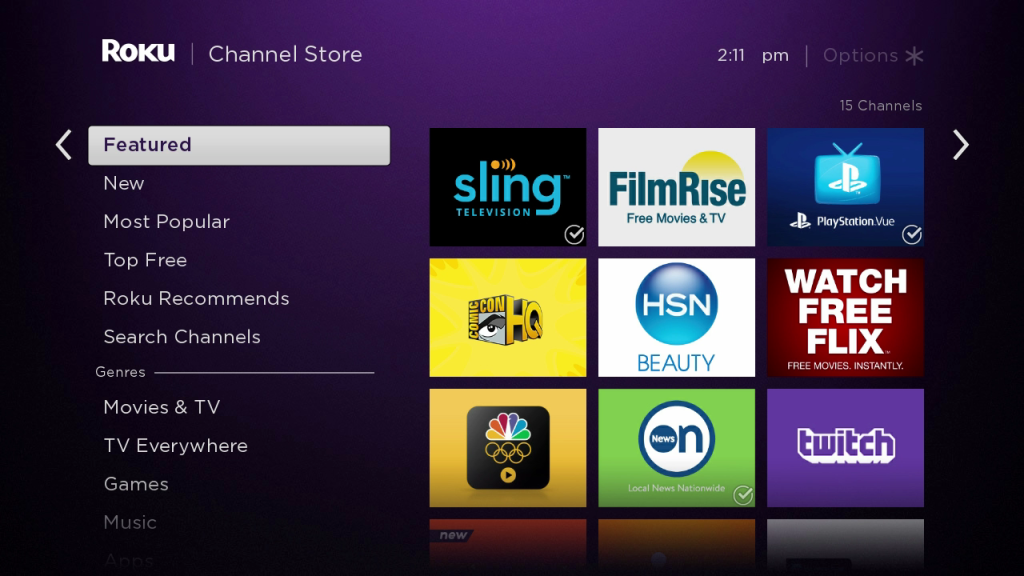
- Open Store on Roku.
- Search for apps such as NewsON, Haystack News, Very Local, FOX LOCAL, or your station’s name.
- Select the app and add it.
- Open the app and enter your city or ZIP code if asked.
- Save favorite stations if the app allows it.
4. Add station-specific apps
Some local stations publish their own Roku apps, especially news stations. This is a good method if you already know the specific broadcast you want.
Below is the procedure:
- Open Roku Store.
- Search using the station call sign or brand name, such as your local station name.
- Add the station app if available.
- Open it and enjoy.
5. Use the PBS app for your local PBS station
PBS is worth calling out separately. This service works differently from other local options we have listed above.
As long as you are in that station’s service area, just use its official PBS app. You do not need to pay, though on Roku streaming devices, an account is required for the app experience.
Here are the steps:
- Add the PBS app from Roku.
- Open the app.
- Go to Live TV or My Station.
- Choose Watch Now or Live TV.
- If needed, change your station in the profile or station settings.
- If you get a location error, test again on another network or verify that Roku is showing the correct location.
6. Subscribe to a live TV streaming service
If you do not want to use an antenna but still want the closest thing to a cable-style local lineup, get a paid live TV streaming service. This is the best method if you want local channels plus sports, cable news, DVR features, and one app-based lineup.
Use the following steps:
- Open Roku Store.
- Add the app for the service you want. Hulu, YouTube TV, or Fubo are examples.
- Sign up.
- Enter your home ZIP code if asked.
- Allow location verification if the service asks for it.
- Open the live guide and check which local channels appear for your area.