Canceling HBO Max on Roku is usually quick. This is as long as you cancel it in the same place you originally subscribed. That’s the part that trips people up.
If you are billed through Roku, you cancel in your Roku account. If you subscribed directly with Max, you cancel on Max’s website. If you bought through a third party (Apple, Google Play, Amazon, your cable company), you cancel through that provider.
Here is exactly how to cancel HBO Max on Roku.
Procedure on how to cancel HBO Max on Roku
Follow the relevant process for your case below:
Confirm who bills you
Before you cancel anything, do this quick check. It prevents you from canceling the wrong account and still getting charged. Here is how:
- Open Max on any device where you can sign in. A phone/computer is easiest.
- Go to your Subscription or Billing area.
- Look for a line that says Billed through (or similar).
- If it says Roku, you must cancel through Roku.
- If it says Max, you can cancel on Max directly.
- If it says Apple/Google/Amazon/cable provider, cancel there.
Option A: Cancel Max through Roku billing
If you’re already on the Roku home screen:
- Press Home on your Roku remote.
- Highlight the Max, or HBO Max, channel tile from your home screen.
- Press your Star (*) button. It’s on your remote, and it will open the options menu.
- Select Manage subscription.
- Select Turn off auto-renew. Also, you could tap on Cancel subscription, depending on the wording.
- Confirm when your Roku prompts you.
- After canceling, Roku should show your expiration date. This is the day you stop having access.
Alternatively, you can manage or cancel subscriptions online. Here is how to do it:
- On your phone or PC, open Roku’s subscription management page. This is found on my.roku.com/subscriptions.
- Sign in to your correct account.
- Under your Active subscriptions, you will see Max / HBO Max.
- Find the Manage subscription option.
- Next, tap on Turn off auto-renew. Confirm the action.
- We recommend that you save or screenshot the cancellation confirmation. Also, you should note the expiration date. This will help you later.
Option B: Cancel Max if you’re billed directly through Max
If Max bills you directly, you cancel inside your Max account. Follow this procedure:
- On a phone/computer, go to Max’s subscription page and sign in.
- Find your subscription section.
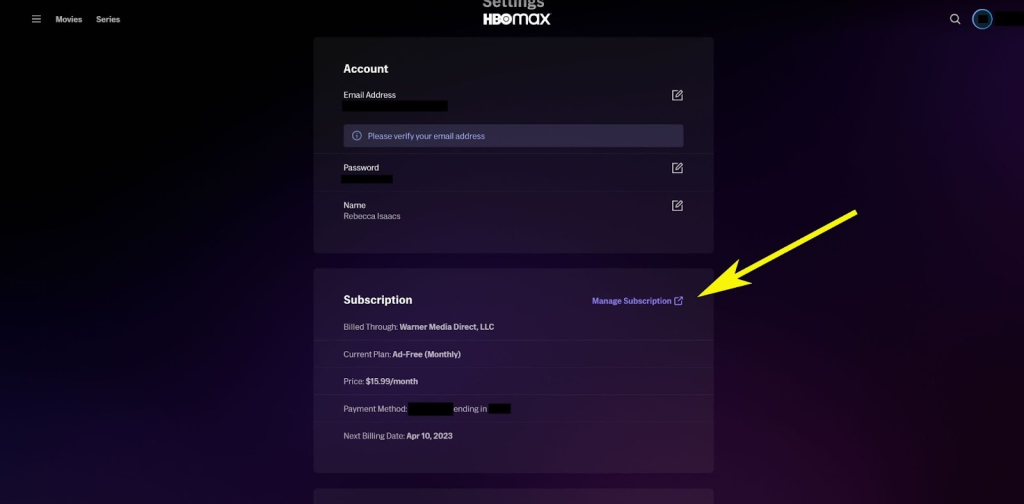
- Choose Cancel Your Subscription.
- Confirm cancellation and note your expiration date.
Option C: Cancel Max if you’re billed through a third party
If you don’t see a cancel button on your Max, that often means a third party handles your billing. Hence, you need to cancel through them instead. Common third parties are:
- Apple App Store: Cancel in your Apple subscriptions.
- Google Play: Cancel in Google Play subscriptions.
- Amazon (Prime Video Channels / Amazon billing): Revoke subscription in Amazon subscriptions.
- Cable/mobile provider bundle: Cancel through the provider.
After you cancel: how do you verify you won’t be charged again
You should get an email confirmation. It will be from the service that handles your billing, confirming the cancellation. Hence:
- Check your email for a Roku cancellation confirmation.
- On my.roku.com/subscriptions, confirm Max shows expires on [date], and auto-renew is off.
- If your billing is through Max directly, sign back into Max and confirm the subscription shows cancelled with an expiration date.
Note: Canceling stops future renewals. The good news is that you will keep watching until the end of your existing billing cycle. This implies that you can stream until your subscription lapses at the specified date. But after that date, you will no longer have access to any content.