MGM+ (formerly known as Epix) is a premium cable network that can be a good source of entertainment, especially if you are a classic movie buff. It also offers an extensive collection of current films and original TV shows.
If you have a valid cable or satellite TV package, you can activate MGM+ on several supported devices and stream your movies and TV shows. Below is a detailed guide on how to set up and activate the cable network on various streaming devices:

1. Activate MGM+ on Roku
To activate and watch MGM+ on Roku:
- Ensure that your Roku device is connected to the internet.
- From your Roku home screen, navigate to “Streaming Channels” or the “Channel Store” and search for “MGM+”.
- Add the MGM+ channel and let the app install, then go back to the home screen.
- Open the MGM+ channel and select “Sign In.”
- Log in with your existing MGM+ account or follow the on-screen instructions for creating a new one.
- Go to “Connect Your Provider” and select your TV service provider from the list. When prompted, enter your TV service provider account credentials (username and password)
- After signing in, an activation code will appear on your TV screen. Note down the activation code, then use your PC or mobile device to visit the MGM+ activation page.
- Enter the activation code from your Roku device on the page and click “Submit.”
- Follow the on-screen instructions to complete the activation process.
- Go back to your Roku device, launch the MGM+ channel from the home screen, and start watching.
NOTE: The activation code displayed on your Roku device’s screen is valid for only 1 hour. Therefore, you will need to get a new activation code if you don’t use it within this time frame.
2. Activate on Amazon Fire TV devices
To set up and watch MGM+ on an Amazon Fire TV device:
- Ensure your Fire TV device is connected to the internet.
- From the home screen, go to “Find” and search for “MGM+” in the search bar.
- Download and install the MGM+ app.
- Go back to the home screen and launch the MGM+ app.
- Navigate to “Log In” and sign in with an existing MGM+ account or follow the on-screen instructions to create one.
- Choose the option to connect your MGM+ app to your TV provider, then sign in with your TV provider account credentials when prompted.
- An activation code for your Fire TV device will then appear on your TV screen. Note down the code, then visit the MGM+ activation page on either your PC or smartphone.
- Enter the activation code, click submit, then follow the on-screen instructions to complete the activation process.
- After activation, go back to your Fire TV home screen, launch the MGM+ app, and start streaming.
3. Activate on Apple TV
To activate MGM+ on Apple TV:
- Ensure your Apple TV is connected to the internet.
- Go to the App Store, search for and download the MGM+ app.
- Go back to your Apple TV home screen and launch the app.
- Navigate to “Sign In” and log in to the app with your existing MGM+ account, or create a new one if you don’t have one.
- Select the option to link your account to a TV provider and sign in with your TV provider account credentials.
- An activation code will appear on your screen. Note down the code, then visit the MGM+ activation page on your PC or smartphone.
- Enter the code in the activation page and click “Submit.”
- Follow the on-screen instructions to complete the activation process.
- Go back to your Apple TV’s home screen, launch the MGM+ app, and start streaming.
4. Activate MGM+ on mobile devices
To set up and watch MGM+ on a mobile device:
- Go to your mobile device’s app store (Google Play Store for Android, Apple App Store for iOS, and Amazon App Store for Fire devices).
- Search for and install the MGM+ app.
- Launch/Open the app and navigate to Log In
- Log in with your existing MGM+ account or create a new one if you don’t have one.
- Once logged in, choose the option to connect your account with your TV provider. When prompted, sign in with your TV provider’s account credentials.
- Depending on your device, an activation code may appear on your screen. If so, note down the code, then go to the MGM+ activation page on another device, enter it, and follow the on-screen instructions to complete the activation.
- Go back to your mobile device, launch the MGM+ app, and start streaming.
5. Activate on the web
You can also watch MGM+ via the web. To do this:
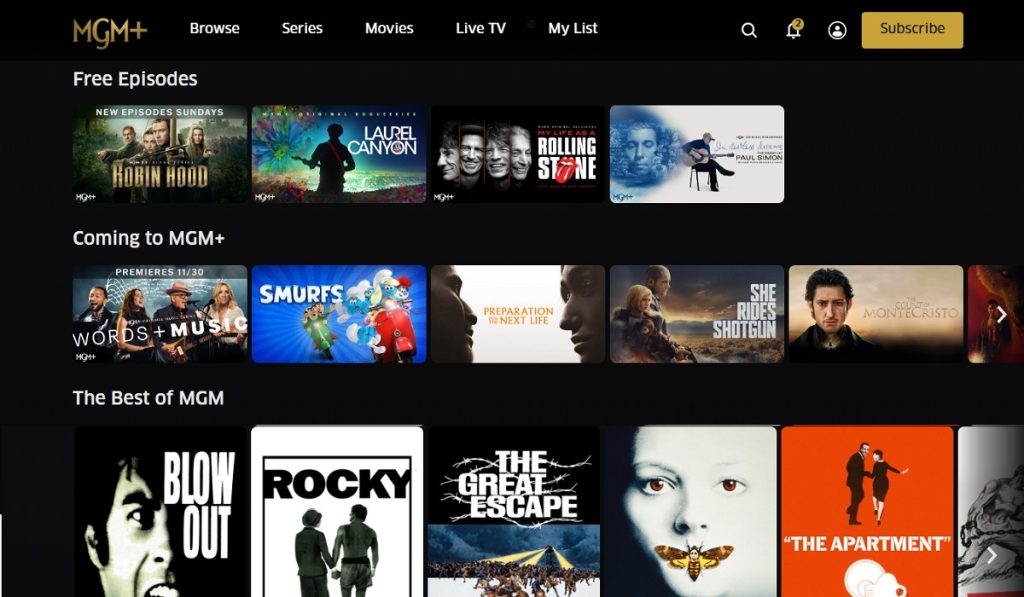
- Go to MGM+ on your web browser.
- Click on “Log In” and log in with an existing MGM+ account or follow the on-screen instructions to create a new one.
- Once logged in, go to “Connect to Your Provider” and select your TV service provider from the available list.
- Sign in with your TV provider’s account credentials.
- Go back to the MGM+ website and start watching content.
6. Activate on Smart TVs and TV boxes
MGM+ is available on select smart TVs and TV boxes. To set up the service on these devices, follow the steps below:
- Ensure your TV or TV box is connected to the internet.
- Go to your device’s app store and search for “MGM+.”
- Download and install the app on your device.
- Go back to your home screen and launch the MGM+ app.
- Select “Log In” and sign in with your existing account or create a new one.
- Choose the option to link your MGM+ account with your TV provider and sign in with your provider’s account credentials.
- Depending on your device, an activation code may appear on your screen. Note down the code, then visit the MGM+ activation page.
- Enter the code, click submit, and follow the on-screen instructions to complete the activation process.
- Go back to your device’s home screen, launch the MGM+ app, and start streaming.
Other ways to watch MGM+
Besides streaming MGM+ via your TV provider with the above devices, you can also watch the cable network in other ways.
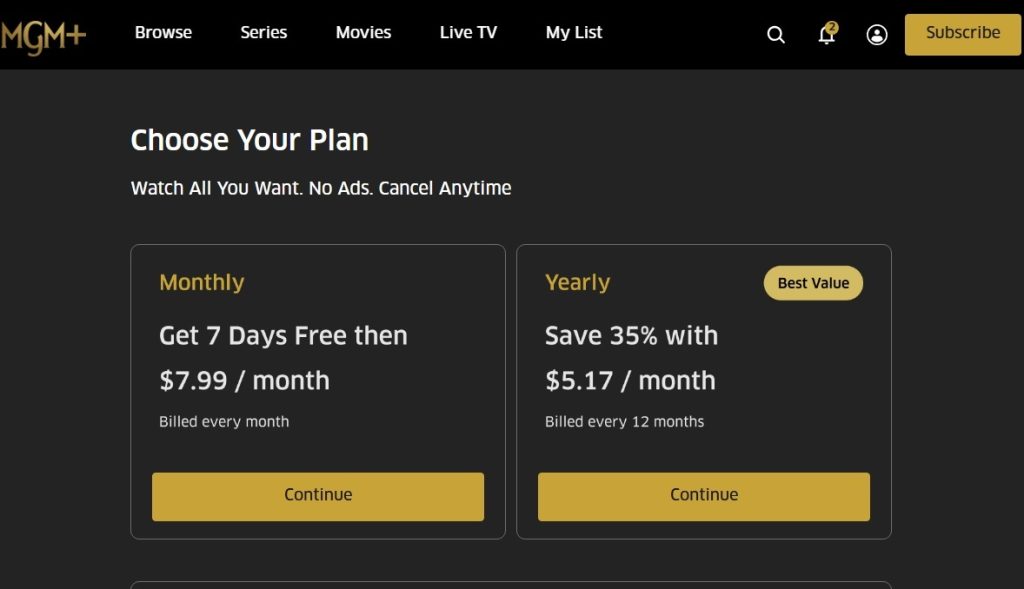
The first alternative is via a direct-to-consumer subscription plan, which you can purchase on the MGM+ website or app. Two subscription plans exist: a monthly plan at $7.99 and an annual plan at $61.99.
You can also get MGM+ as an add-on channel on various streaming services, including Amazon Prime Video, Sling TV, Xfinity, Hulu, and more.