Updating your TCL TV software, sometimes called “system update,” “firmware update,” or “OS update”, is one of the simplest ways to fix bugs. It also improves speed, adds features, and keeps streaming apps working smoothly.
Below, we walk you through ways to update your TCL TV software.

Step 1: Identify what kind of OS you have
Take a few seconds to verify your TV’s system or the OS it runs. This matters because the update menus are different. Here is how you can tell:
- The Roku Home screen has Roku channels like “Streaming Channels,” “Settings,” and the Roku layout. If you have this, then your set is a TCL Roku TV. TCL’s Roku update path goes through Settings > System > System update.
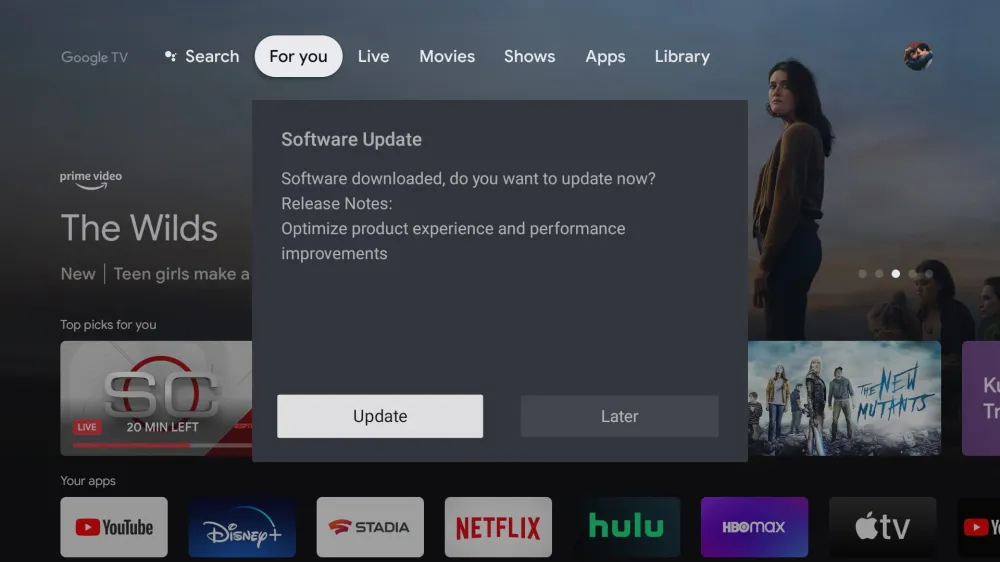
- A Google TV home screen indicates you have a TCL Google TV. The OS update path goes through Settings > System > About > System update.
- If you see Android TV menus, you likely have TCL Android TV. You need to navigate to the following for the operation: Settings > Device Preferences > About > System Update.
- If you see Fire TV menus, you have a TCL Fire TV. Its update path is Settings > Device & Software > About > Check for Updates.
Step 2: Do this quick checklist before you update
These small steps reduce update errors and protect your TV.
So, before you start:
- Use stable power: Have an automatic backup if your area often has sudden power cuts.
- Confirm the internet is working (for online updates)
Tip: Some update methods can reset parts of your setup. So before you do a manual USB update, write down:
- Your Wi-Fi name and password
- Your Google account details (Google TV / Android TV)
- Your app logins (Netflix, Prime Video, etc.)
Step 3: Update your TCL Roku TV software (internet method)
This is the simplest update method and what most people should do. Use these steps as soon as the TV is connected to the internet:
- Use the update path we discussed in step 1, specific to your TV OS.
- If an update is found, select Update now.
- Wait while the TV downloads and installs.
- Let the TV restart when it finishes.
If the TV is stuck on update:
- Give it time first (10 to 30 minutes, depending on speed and update size).
- If nothing changes for a long period:
- Cancel if the TV allows it (some do, some do not).
- Restart the TV.
- Re-check your internet connection.
- Try again.
- Do not unplug immediately, as this will brick your TV.
Tip: You can enable an “Auto Update” toggle through the same area to avoid all these steps: Settings > System > About > System Update > Auto Update (On).
Step 4: Update your TCL Roku TV software using USB (manual update)
This process is complex. You should only use it in these cases:
- Your set cannot connect to the internet.
- You do not have a stable Wi-Fi.
- You keep getting “can’t connect” during the above step.
You will need the following:
- A laptop or desktop with any OS.
- A USB drive: We suggest that you get one that has at least 256MB of free space.
- Your TV model number (example format like 6104X): Check this at the back of your set.
Use this procedure once you have everything:
- On your computer:
- Open a web browser.
- Go to the TCL product download page.
- Select your TV model.
- Download the update file.
- Plug that flash drive into your desktop or laptop.
- Unzip the file if ziped then copy it to your portable storage device.
- Save it to the top-level of the storage device.
- Eject the USB drive from the PC, then plug it directly into your set’s USB port.
- Press Home on the remote.
- Go to Settings > System > System update > I can’t connect or Manual Update.
- Follow prompts for the installation to start.