When your TCL TV won’t turn on, it is frustrating. The good news is that you can resolve many “won’t turn on” issues at home.
Here is a write-up on why your TCL TV won’t turn on and how to fix it quickly.
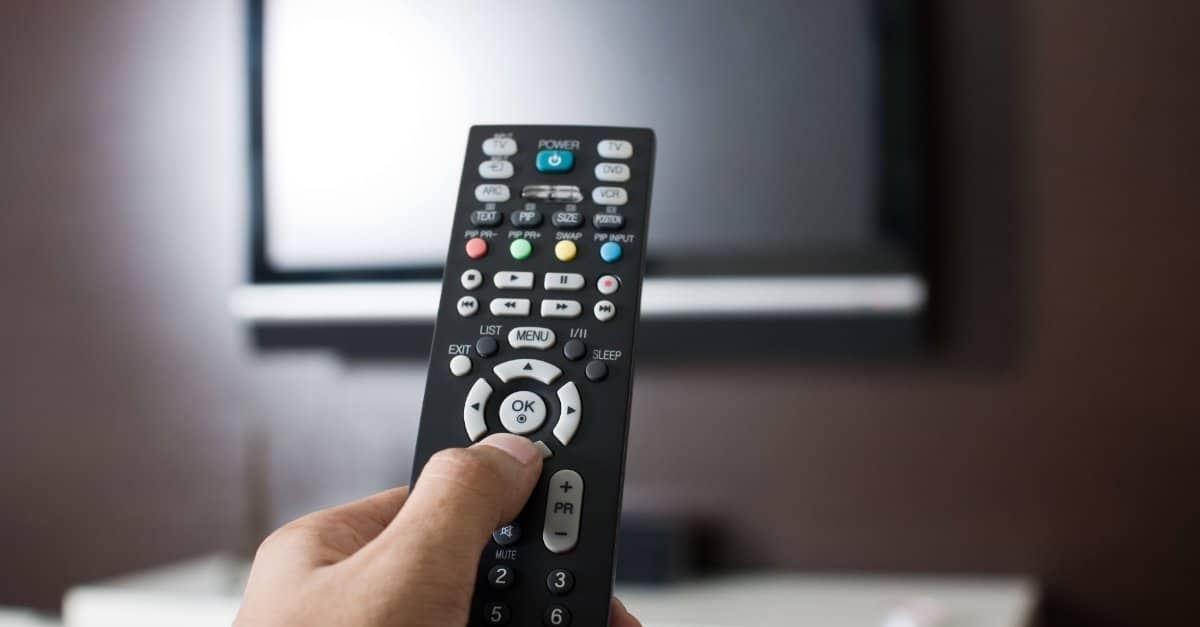
Why your TCL TV won’t turn on and how to fix it at home
Do these in order:
1. Make sure you’re on the correct input
If the TV is on the wrong input, the screen can look “dead” even though it’s working. Do these:
- Press the Input/Source on your remote. You could also use the TV button menu if your set has it.
- Cycle through the options until you see an image.
- If you use any external devices, confirm they’re plugged into the port you selected.
2. Confirm it’s not just the remote
Sometimes the TV is fine, your remote is the problem. It could be dead batteries, not paired, or a blocked sensor. Here is how to know and fix:
- Try turning on the TV using the set’s physical power button. On many models, it’s under the center/bottom edge or on the back/side.
- If the TV turns on with the TV button but not with the remote.
- Put in new batteries.
- Stand 1–3 meters in front of the TV.
- Point the remote directly at the TV’s front sensor.
- Remove any objects blocking the sensor. Soundbar placement can block IR.
- Use the correct pairing method for your TV system. TCL and Roku support provide model-specific pairing/reset guidance.
3. Check the power source
A surprising number of “dead TVs” are just a bad outlet or power strip. Below is how you act on this:
- Plug something else. This could be your phone charger or a small lamp in the same outlet.
- For those with protection devices or a power strip for your set, bypass them. Plug the appliance straight into the energy source.
- Your power cable must be pushed in firmly at both ends, the wall and the TV.
- Inspect this cord for visible signs of deterioration, including cuts or fraying. If you detect any, stop and replace the cord.
4. Do a proper power cycle
This is the best fix we recommend across models because it clears a stuck startup state. Here is how to go about it:
- Unplug your set from the wall.
- Wait for 90 seconds.
- As you wait, press and hold your TV’s physical power button. Do not use the remote. Skip this if your model doesn’t have an accessible button.
- Plug your TV set back in.
- Use the TV power button first, then the remote.
5. Remove HDMI/USB devices
An HDMI device, such as your console or soundbar, could cause your set to hang during startup or get stuck in a handshake loop. You can fix this by:
- Unplug your screen.
- Disconnect everything from it. Leave only the power cord.
- Plug and turn it on.
- If the set is back to normal, reconnect devices one by one until you find the cause.
6. Use the recessed reset button
If the TV’s software is corrupted or stuck, the physical reset forces a restart and, on many models, a factory reset. On your TCL, do the following:
- Look for a small RESET pinhole on the back or side connector panel.
- Plug the TV.
- Press and hold it for 30 seconds. Or until the TV restarts.
- Let the TV boot.
Important: This should be the last resort. Also, ensure you know the passwords for your internet and streaming accounts before proceeding.
7. Do the flashlight test
Your set could be producing an image, but the backlight is dead, so the screen looks black. Here’s how to tell:
- Turn your set on.
- Turn off your room lights. Even better, go to a dark room.
- Shine your phone’s flashlight at the screen. Be at least a few inches away at an angle.
- Look closely for a faint image to confirm the backlight issue.