Is the NFL Network not working? From time to time, you may encounter issues when trying to watch the NFL Network.
While being unable to watch the NFL Network can be frustrating, most of the issues you might encounter are minor. Therefore, you can easily resolve them with simple troubleshooting steps, ranging from power cycling your devices to updating your app.
Below is a complete troubleshooting guide to help you resolve issues with the NFL Network.
Basic troubleshooting tips
Before you get started with more intricate solutions, you can attempt the following simple steps to fix the NFL Network not working problem:
- Check that you have a fast, stable internet connection.
- Disable VPN if you are using one.
- Disable ad blockers or similar extensions (if using a computer browser), as they can sometimes interfere with the video player.
- Sign out of some of your devices; you may have too many devices trying to stream the NFL Network at once.
If none of these steps work, you can try the following solutions:
1. Restart your streaming session
Minor and temporary issues, such as software glitches or bugs on your devices, are among the most common reasons the NFL Network may not be working. These problems are easy to troubleshoot, and a simple refresh of your streaming session can fix them.
If watching via the NFL app, YouTube TV, or another streaming app, close the app, relaunch it, then check if the issue has resolved. For better results, you can even sign out of the app, then sign in again before relaunching it.
If watching via your personal computer, try closing the browser and then relaunching it to see if the problem resolves.
2. Power cycle your devices
Power cycling your devices is another solution that can help resolve temporary issues with the NFL Network.
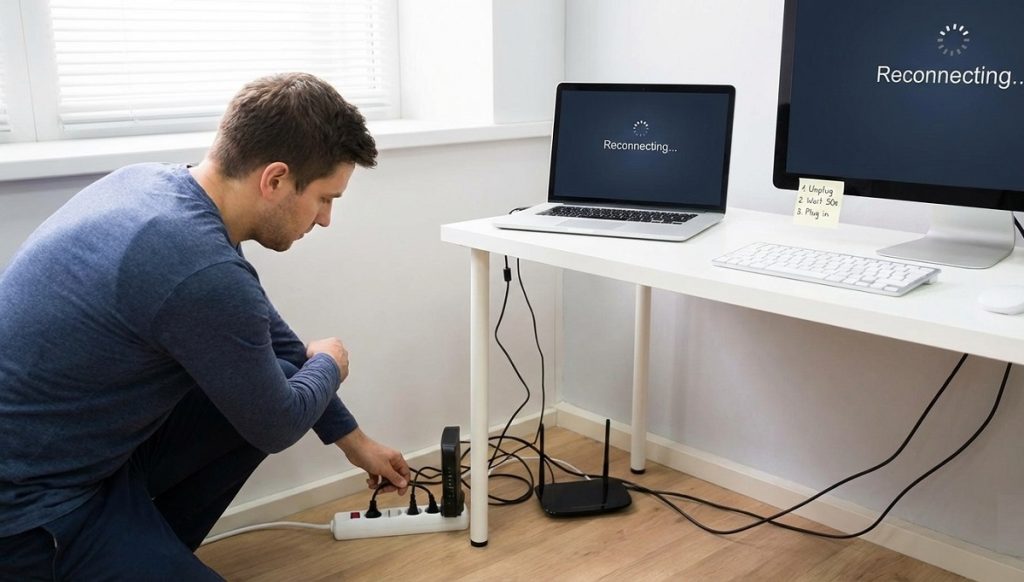
Power cycling resets your devices, clearing temporary memory (RAM) and refreshing internal components, which can fix problems such as bugs, glitches, and slow performance.
For the best results, power cycle all devices you use to watch the NFL Network, for example, your streaming device (TV, computer, or streaming media player) and Wi-Fi devices (router and modem).
To power cycle a device:
- Unplug it from the electrical outlet or power extension.
- Wait about 30-60 seconds.
- Plug it back in and see if the issue has been resolved.
When power cycling devices like your computer or TV, press and hold the power button (hard power button) for about 60 seconds after unplugging it from the outlet. Doing this helps drain residual power, forcing a complete reset of internal hardware and software.
3. Check if there is an outage
An outage is another reason you may be experiencing issues with the NFL Network. While uncommon, outages can occur, leaving you unable to watch your favorite NFL games.
Note: You can encounter different types of outages affecting the NFL Network. For example, an outage affecting the NFL Network channel or a platform-specific outage (or blackout) affecting the NFL Network on platforms like YouTube TV.
However, outages are easy to troubleshoot as you only need to check online reports on platforms such as Downdetector.com or social media. Unfortunately, if you confirm that the issue is an outage, the only solution is to wait for service to be restored.
4. Verify your account and subscription
You should check your account and subscription if you find that the NLF Network is not working.
First, ensure you have an active subscription. This can either be a direct subscription via NFL+ or a subscription through TV providers like YouTube TV.
If you are having login issues, check your account and ensure you are logging in with the correct credentials. For example, if you got the NFL Network via a TV provider, you will need to log in with that provider’s credentials on the NFL app or website.
If you are still having login issues, you can use the account recovery feature to reset your password.
5. Clear Cache
Cache-related issues, such as a corrupted or outdated cache, can cause problems with the NFL Network. Fortunately, clearing your device’s cache can help resolve the problem.
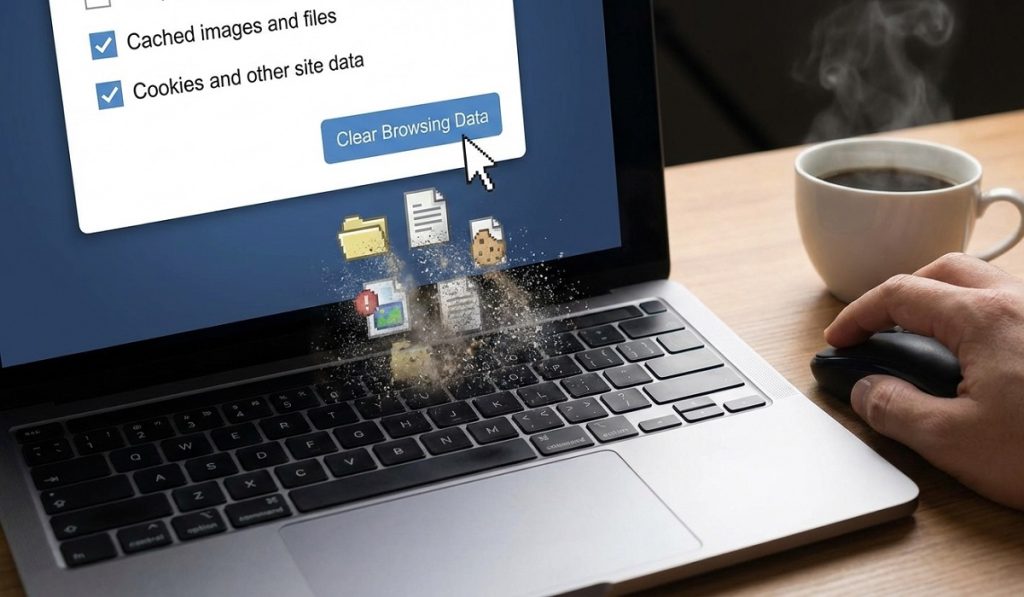
Below is a look at how to clear cache on various devices:
- Smart TVs: To clear the cache, go to Settings > Storage (or Apps) > NFL App, then select Clear Cache.
- Android mobile devices: Go to Settings > Apps > NFL App > Storage (or Storage & cache), then tap Clear cache.
- On iOS mobile devices: Go to Settings > General > Storage > NFL App > Offload app.
- On computer browsers: Go to Menu (three-dot menu) > Clear or Delete browsing data > Clear cache.
For streaming devices, if watching via another platform, say YouTube TV, follow the same procedure to clear cache, but with the specific app you are using instead.
Additionally, if the issue does not resolve after clearing the cache, you can try deleting (uninstalling) the app, then reinstalling it.
The above solution should help you resolve most issues with the NFL Network. However, if the problem persists, contact NFL Support or the customer support team for the platform you use to watch NFL Network for an advanced troubleshooting guide.