If you subscribe to more than one streaming service, your Roku home screen is probably now messy. You could even forget what you watched, and you miss new episodes because you have too much data on your home screen.
Roku’s newer update (Roku OS 15.1) adds a “Subscriptions” tab on the left side of the home screen. This tab pulls together shows and movies from the streaming services you use, so you can track your paid content in one spot instead of opening five apps one by one.
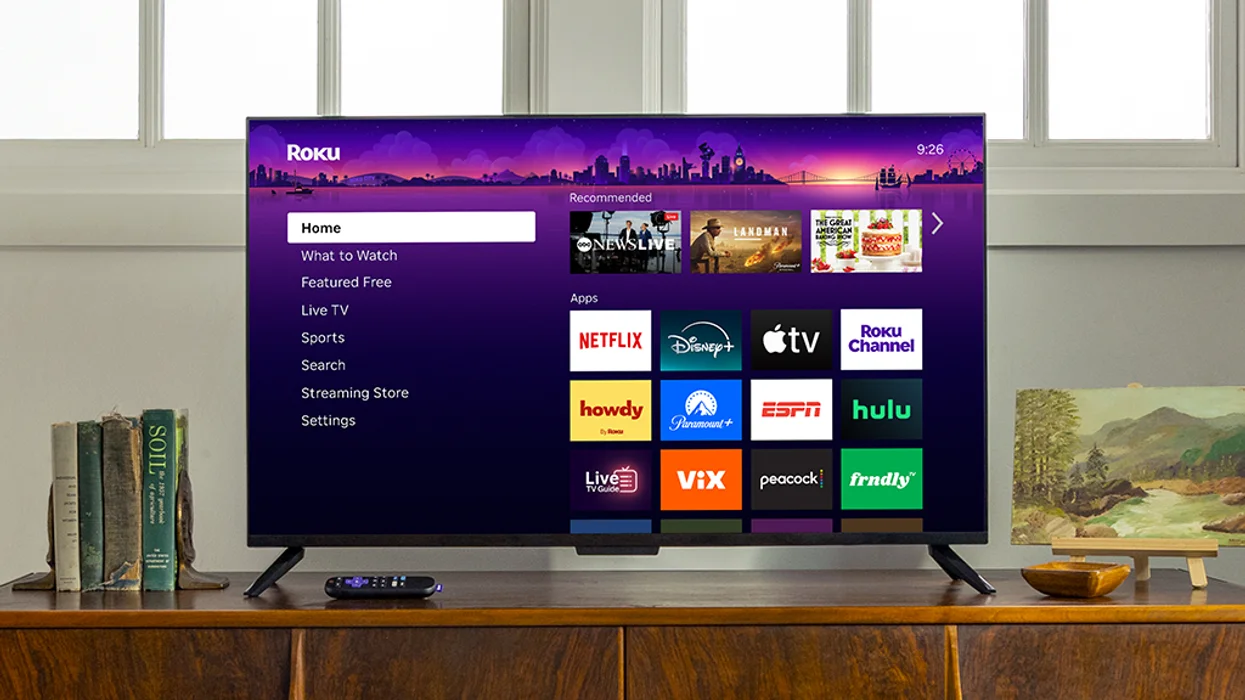
What the “Subscriptions” tab does
When your Roku gets the update, you’ll see Subscriptions in the left menu (near items like Home, Streaming Store, Settings, etc.). Inside, Roku shows you rows like:
- Continue Watching (so you pick up where you stopped)
- Newly Added / New on your services
- Popular / Trending
The key idea for the new Roku TV home: You get a single feed that surfaces titles from multiple services, then Roku sends you into the right app when you press play.
Why you’ll probably like the new Roku TV home
This new feature will have many advantages for you, including:
You stop “app-hopping.”
Instead of opening Disney+… then Hulu… then Prime Video… you scan one page first. If something looks good, you click it, and Roku takes you to the service that has it. That saves time and reduces the “what should I watch?” stress.
You remember what you were watching
A lot of people lose track when they switch between services. The Subscriptions tab puts Continue Watching in the same place as other “what’s new” rows, so you don’t need to hunt inside each app.
It feels more “organized” than the standard home screen
Roku already has discovery areas, but this feature focuses on the services you pay for (and use). It’s like a shortcut to your personal streaming lineup.
How to find it and turn it on
Rollouts can vary by Roku model, so you might get it later than someone else. But when it appears, you can control it in your Home Screen settings:
- Go to Settings > Home Screen
- Find Menu items
- Highlight Subscriptions
- Choose Show.
If you do not want extra home screen items, hide it the same way you hide things like Sports or Live TV.
Should you use it?
If you pay for multiple services and you often forget what’s new, you’ll likely enjoy it. If you prefer a super-clean home screen and you don’t want Roku showing your viewing activity in one place, you may want to hide it.