Are you looking for genuine, unfiltered, and high-drama entertainment? Then the Zeus Network is perfect for you.
A subscription-based video-on-demand streaming service, the Zeus Network is the go-to platform for raw, uncensored reality TV, scripted shows, and movies, featuring celebrities, influencers, and other internet personalities.
Before you start watching, you will need to activate the Zeus Network on your device. Below is a step-by-step guide to get started with the streaming platform and activate it on your Smart TV for seamless viewing.
How to subscribe to the Zeus Network?
You need an active Zeus Network subscription to activate the streaming platform on your Smart TV. If you don’t have a subscription, you will need to purchase one.
Below is a look at how to subscribe to the Zeus Network:
- Go to thezeusnetwork.com in your computer browser or on another internet-connected device.
- Click on the orange Subscribe Now button.
- Select your preferred subscription plan: Annual subscription at 69.99 per year or a monthly subscription at $6.99 per month.

- Enter your details in the Create your account section (email and password). If you have a Zeus Account, click on the Log in link and enter your details.
- Enter your card details in the Payment details section, then click on Start subscription to purchase the subscription.
- Once you purchase the subscription, you can activate Zeus Network and start streaming.
Note: When purchasing a Zeus Network plan, you can set up your account for automatic subscription renewal by checking the Automatic Renewal Details box just before you click on Start subscription.
How to activate the Zeus network on TV
After purchasing a Zeus Network subscription, you are one step closer to watching your favorite content. To complete the process and start watching, follow the steps below to activate your account on your Smart TV.
- Press the Home button on your Smart TV’s remote.
- Navigate to your TV’s app store (or the Channel Store on Roku TV).
- Search for “Zeus network” in the app store. Depending on your TV model, you can also use voice search (the mic button on your remote).
- Select the Zeus Network app from your search results and click Install or Download.
- Launch (open) the app, then sign in with your Zeus Network credentials.
- After signing in, an activation code will appear on your TV screen. Note down the code for the next steps.
- Using another device, go to thezeusnetwork.com/activate.
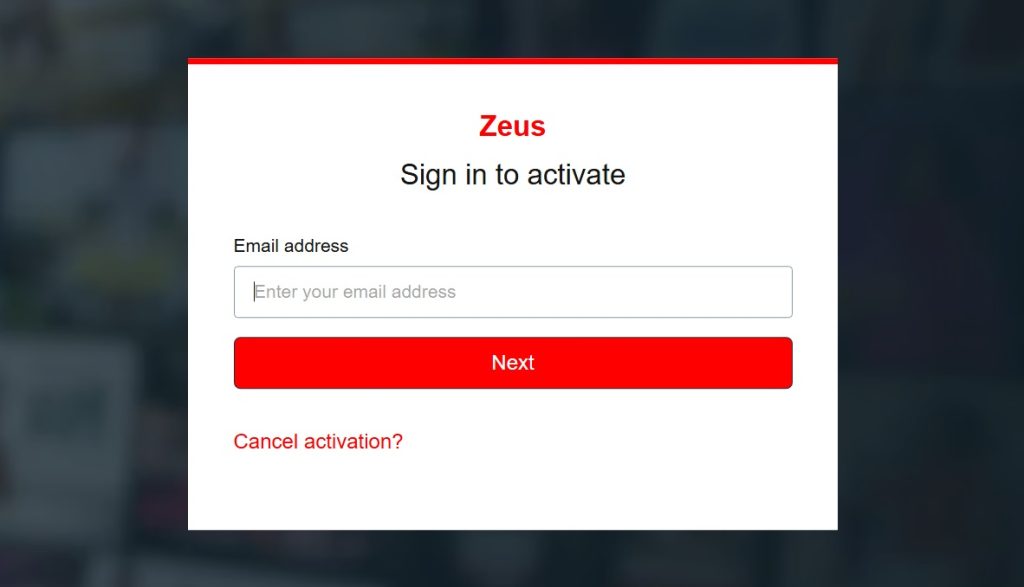
- Sign in using your Zeus Network credentials.
- Enter the activation code from your TV screen, then click Connect Device to complete the activation.
- When the activation is successful, a pop-up window will appear with the message “App Activated!” The Zeus Network app on your Smart TV will also refresh, allowing you to start watching content.
Other ways to watch content on the Zeus Network
Besides your smart TV, you can also watch the Zeus Network on several other devices, including:
- Mobile devices: Android 5.0 or higher and iOS 12.0 or higher.
- Streaming media players: Roku (3rd gen and higher), Android TV devices, Amazon Fire TV, Apple TV (4th generation or higher), and Chromecast.
- Gaming consoles: Xbox One and Xbox Series consoles.
- Web browsers: You can also watch directly from the Zeus Network website.
The activation process for the above devices (other than the web browser) is the same: download the app on your device, sign in, note down the activation code, and enter it on Zeus Network’s activation page.