Activating Marquee Sports Network on your TV is straightforward if you are in the Chicago Cubs’ broadcast territory and have the right setup.
This network lets you stream live games, pre- and post-game shows, and exclusive programming through its app on devices like Roku, Fire TV, Apple TV, and more.
You can sign in with your cable or streaming provider, or get a direct subscription for $19.99 per month if you do not have a traditional TV package.
Start by downloading the Marquee Sports Network app on your TV, open it to get an activation code, then go to watchmarquee.com/activate on another device to enter the code and link your account.
How to prepare for Marquee Sports Network activation
Before you start the activation steps for your device, make sure your setup is ready. Here is what to do first:
- Confirm you are in the Cubs’ territory by visiting mlb.com/live-stream-games/subscribe. Then, enter your zip code.
- You need a stable internet connection of at least 10 Mbps to avoid buffering when streaming in HD.
- Update your device’s firmware: On Roku, go to Settings > System > System Update; on Fire TV, Settings > My Fire TV > About > Check for Updates.
Ensure you have your provider credentials or direct subscription login handy. If using a smart TV’s built-in app store, ensure it is connected to Wi-Fi. For casting, your phone and TV must be on the same network.
If you have not used the app before, download it from your device’s app store. The app is free, but you need to sign in to watch content. You can stream on up to five devices at once.
You do not always need cable to watch Marquee. If your provider offers the channel (check by entering your zip code at marqueesportsnetwork.com/providers), you can activate the app for free with your provider login.
How to activate Marquee Sports Network on Roku
Roku is a popular way to access Marquee. It supports Roku Express to Ultra models. To activate:
- Start by powering on your Roku.
- Navigate to the home screen.
- Select “Streaming Channels” from the left menu.
- Search for “Marquee Sports Network.”
- Select Add Channel.
- Launch the app, and you will see a prompt to activate.
- An alphanumeric code (usually 6-7 characters) appears on screen.
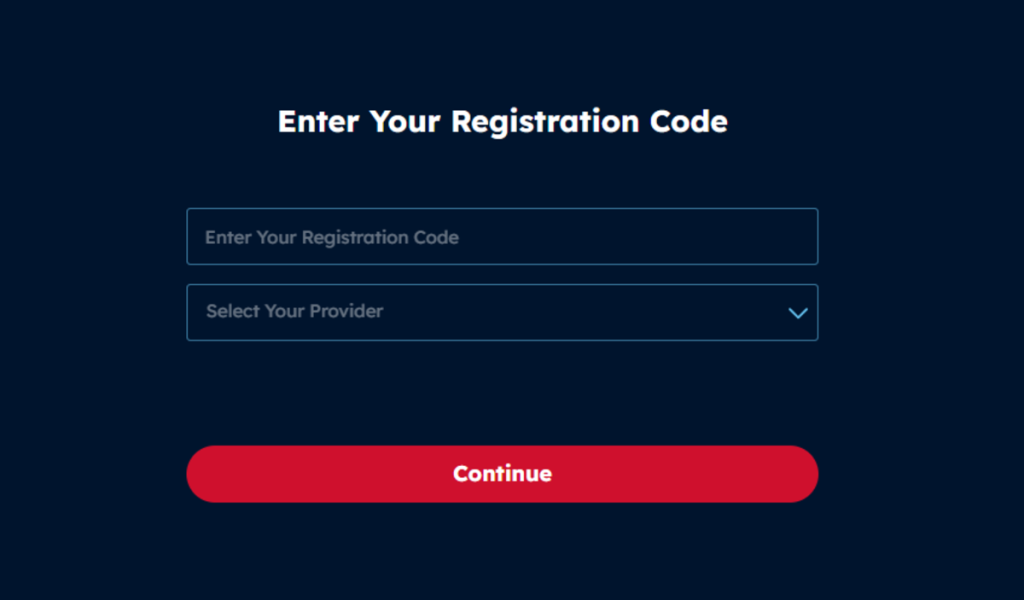
- On your phone or computer, open a browser and go to watchmarquee.com/activate.
- Enter the code exactly as shown.
- Select your provider from the dropdown (e.g., Xfinity or Fubo), then log in with your account details.
- If subscribing directly, choose that option and enter payment info.
After you submit, your Roku will refresh and give you access. Try watching a live game or on-demand video to make sure it works. If your code expires after 15 to 30 minutes, just reopen the app to get a new one.
How to activate Marquee Sports Network on Amazon Fire TV
Fire TV devices, including Fire TV Stick and Fire TV Cube, support Marquee. To activate, follow these steps:
- From the home screen, search for “Marquee Sports Network” in the Amazon Appstore.
- Download and install the app. It will show up in your list of apps.
- Open the app.
- If prompted, select Sign In with TV Provider or Subscribe Now.
- The activation code displays.
- Go to watchmarquee.com/activate on another device.
- Input the code and authenticate.
Voice search on Alexa-enabled Fire TV devices can speed up the process. Say “Open Marquee Sports Network” after installation.
Fire TV works with Amazon accounts, but you should use your provider login, not Amazon Prime, unless your subscription is bundled. If you are in a fringe area and get a location error, try restarting your device or checking your Wi-Fi IP address to fix it.
How to activate Marquee Sports Network on Apple TV
Apple TV (4th gen or later) provides a premium Marquee experience. To activate:
- Go to the App Store.
- Search for “Marquee Sports Network,” and download.
- Launch it after downloading.
- An activation code pops up with instructions.
- Visit watchmarquee.com/activate on your iPhone or Mac.
- Enter the code and sign in.
- Apple TV’s Single Sign-On feature might auto-fill provider details if set up.
- Activation confirms instantly.
For older Apple TV models, you can use AirPlay from your iPhone. Open the app on your phone, tap the AirPlay icon, and choose your TV.
How to activate Marquee Sports Network on Android TV
Android TV boxes, such as Nvidia Shield or Sony TVs, support Marquee through the Google Play Store. To activate, follow these steps:
- Search and install the app on the Google Play Store.
- Open the app to get the code.
- Activate at watchmarquee.com/activate.
- Sign in with your provider’s credentials.
The app will open and allow you to start watching live sports.
How to activate Marquee Sports Network on Smart TVs
Many smart TVs (Samsung, LG, Vizio) have built-in app stores. The activation process is the same as for other devices:
- Search for Marquee
- Install the app.
- Follow the code activation.
For Samsung TVs, clear the cache if login fails. Go to Settings > Apps > Marquee > Storage, then tap Clear Cache.
LG’s webOS or Vizio’s SmartCast work similarly. If there is no native app, cast from your phone.
Troubleshooting common activation issues
If activation fails, common causes and solutions include:
- Incorrect codes – Relaunch the app to get a fresh one.
- Out-of-market errors – Disable any active VPN service on your device and try mobile data on your phone for testing.
- Extra device – Log out from unused ones via account settings.
- Streaming buffers – Clear app cache, restart device, or check speed at fast.com.
- For “login failed” like code mkTKNS on Samsung, reinstall the app.
You might also have login issues with your provider. This usually happens if your package does not include Marquee. Check with your provider to make sure Marquee is part of your plan.
Most problems can be fixed with these steps, so you can keep watching Cubs games without interruption.