SoundCloud is one of the top music streaming apps for your mobile device. But you can also activate SoundCloud and set it up on your TV.
Setting up SoundCloud on your TV is easy, as you only need to install the native app. If your TV does not support the official app, you can use other methods, such as casting from your phone or connecting a streaming stick/media player that supports the app to the TV.

In this guide, we will take a detailed look at how to activate and set up SoundCloud on various types of TVs.
Creating a SoundCloud account
Before you set up SoundCloud on your TV, you will need to create an account (if you don’t already have one).
- Download, install, and launch the SoundCloud app on your mobile device (or you can go to the SoundCloud official website on your computer browser).
- Select the option to create an account.
- Enter your login information (email and password). Make sure to note down the credentials, as you will need them to set up SoundCloud on your TV.
- Select your gender and click continue.
- Go to your email inbox and click the activation email from SoundCloud (you may also be prompted to enter an activation code sent to your email into the sign-up page).
Once you have finished creating the account, you can set up the app on your TV and start streaming music. Below is a look at how to do this on various TV devices:
1. Smart TVs
You can activate and set up SoundCloud on most Smart TVs, including Samsung, LG, and other models running Android TV or Google TV. Below is a look at different methods you can use to listen to SoundCloud on your TV:
Method 1: Installing the native SoundCloud app
Installing the native SoundCloud app is one of the top ways to stream music on your TV. To do this:
- Go to the Apps section or the App store on your Smart TV.
- Use the search bar (or the voice search feature on your remote) to find the SoundCloud app. Install and launch the app.
- Once the app opens, an activation code will appear on the TV screen.
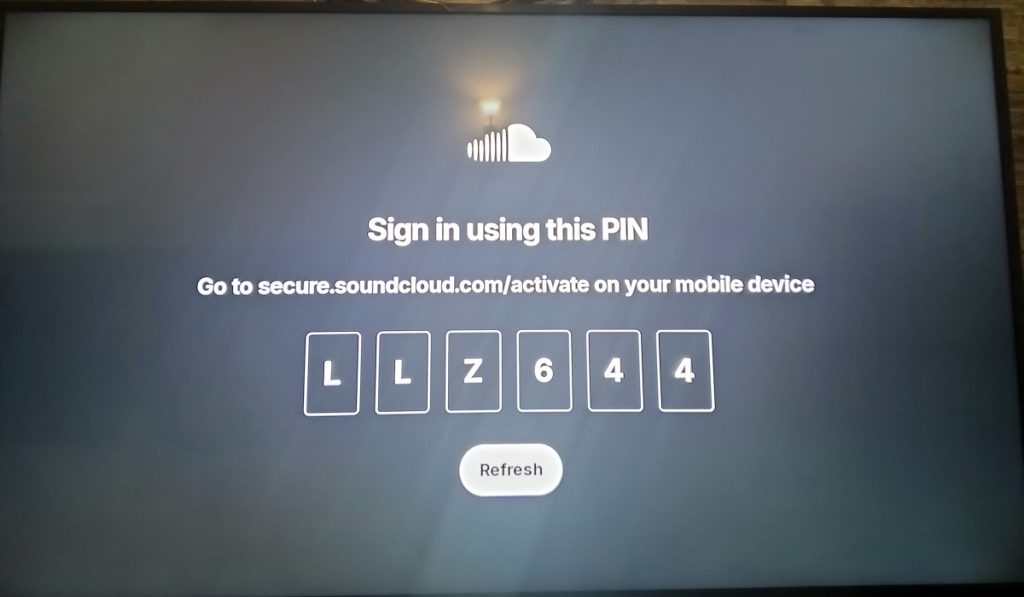
- Go to secure.soundcloud.com/activate on your mobile device or PC’s browser.
- Sign in to your SoundCloud account using your credentials, then enter the activation code from the TV screen.
- Once the activation is complete, your TV screen will refresh, and you can start streaming music.
Method 2: Casting from your mobile device.
Screen casting is another way to access SoundCloud on your TV, especially if your Smart TV does not support the native app. To start casting:
- Ensure your TV and the mobile device you are casting from are on the same Wi-Fi network.
- Launch the SoundCloud app on your mobile phone (download the app from the app store if you don’t already have it installed).
- Tap the cast icon.
- Choose your TV from the list of devices to start casting and playing music.
Method 3: using a streaming stick/media player
You can also access SoundCloud on your TV by installing the native app on a streaming stick or media player that supports the application, then connecting the device to your Smart TV.
To do this:
- Connect a streaming stick or streaming device that supports the native SoundCloud app (top examples include Chromecast and Android/Google TV streaming media players).
- Go to your device’s app store, then download and install the SoundCloud app.
- Launch the app. Depending on your device, an activation code may appear on the TV screen.
- Go to secure.soundcloud.com/activate and log in to your SoundCloud account, then enter the activation code.
- Follow the on-screen prompts to complete the activation, then return to your device and start playing music.
2. Apple TV
Apple TV does not have an official SoundCloud app. Therefore, the only way to set up the app on your TV is to use AirPlay to cast from your iPhone or iPad to your Apple TV.
To do this:
- First, ensure your mobile device and Apple TV are on the same Wi-Fi network.
- Launch the SoundCloud app on your device and start playing a track.
- Launch the Control Centre (swipe down or up on your device’s screen).
- Tap the AirPlay icon and choose your Apple TV from the list of available devices to start casting and playing music.
Note: You could also try searching for third-party SoundCloud apps to install on your Apple TV. However, these are not official apps and may not offer the same experience.
3. Roku TV
Like Apple TV, Roku does not have an official SoundCloud app. Therefore, you will need to get creative if you want to stream music from the platform on your Roku TV.
One of the best ways you can listen to SoundCloud on Roku TV is to cast from your mobile device. Alternatively, you can set up third-party SoundCloud apps, like SoundCloud Music for TV.
Below is a step-by-step guide on how to install these third-party apps:
- Go to the home screen on your Roku TV.
- Search for “SoundCloud” or any other specific SoundCloud third-party app you have in mind.
- Click on Add Channel/Add app to install the application.
- Launch the channel and follow the on-screen prompts to start streaming music.
4. Amazon Fire TV
Amazon Fire TV is another platform that does not have an official SoundCloud application. Therefore, you have to use alternatives, such as casting from your mobile phone or using third-party SoundCloud apps from the Amazon App Store.
Another option is to sideload the official SoundCloud app from the Google Play Store onto your Fire TV device. To do this:

- Enable the Developer Options on your Fire TV (go to Settings > My Fire TV > About > Your Fire TV Device name, then press the select button 7 times.
- In the Developer Options, enable ADB debugging and Apps from Unknown Sources.
- Grant the Downloader permission to install apps (go to Settings > Apps > Security & Restrictions > Install Unknown Apps and turn the feature on).
- Launch the Downloader app (if it’s not already installed, go to the menu, search for it, and install it).
- Enter the URL or short code of the APK file you want to download (the official Soundcloud URL, in this case).
- Press Go, wait for the APK file to download, then install it.
- Go to Apps & Channels on your Fire TV, launch the SoundCloud app, log in with your credentials, and start playing music.
Note: Attempting to sideload apps onto an Amazon Fire TV is risky and could damage your device. Therefore, you should be cautious when performing this procedure.