NowThatsTV Plus is an excellent option if you are looking for a different kind of entertainment from what mainstream services offer. The independent streaming service offers raw, uncut influencer-led urban reality TV and gaming content.
The platform is available on several devices, including TVs. To start streaming shows, you will need to activate NowThatsTV Plus, a simple process that involves linking your subscription to your TV through an on-screen activation code.

Below is a detailed guide on how to activate the streaming service on various TVs.
1. Smart TVs (Android/Google TV platform)
You can activate NowThatsTV Plus on many Smart TV models, especially those running Android or Google TV. To do this:
- Go to the Apps section on your Smart TV.
- Use the search bar or the voice search feature on your remote to find the NowThatsTV (NTTV) app, then install it on your TV.
- Open the app, then go to Settings > Log In. An activation code will appear on your TV screen.
- Go to nowthatstvplus.com/activate on your PC or mobile phone.
- Log in to your NowThatsTV Plus account, then enter the activation code and click “Activate.”
- Once the process is complete, your TV screen will refresh, and you can start streaming content.
2. Samsung TVs
The NowThatsTV app is also available on the Samsung app store. Therefore, if you have a Samsung TV, you can activate the app on your device and stream content from there.
Below is a step-by-step look at the activation process:
- Press the Home button to launch the Smart Hub on your Samsung Smart TV.
- Press the Apps icon to open the Samsung App Store.
- Use the search bar or the voice search feature on your remote to find the NowThatsTV app.
- Select Install to download the app on your device.
- Once the installation is complete, launch the app, then go to Settings > Log In; an activation code will appear on your TV screen.
- Note down the code, then go to nowthatstvplus.com/activate on your PC or mobile device.
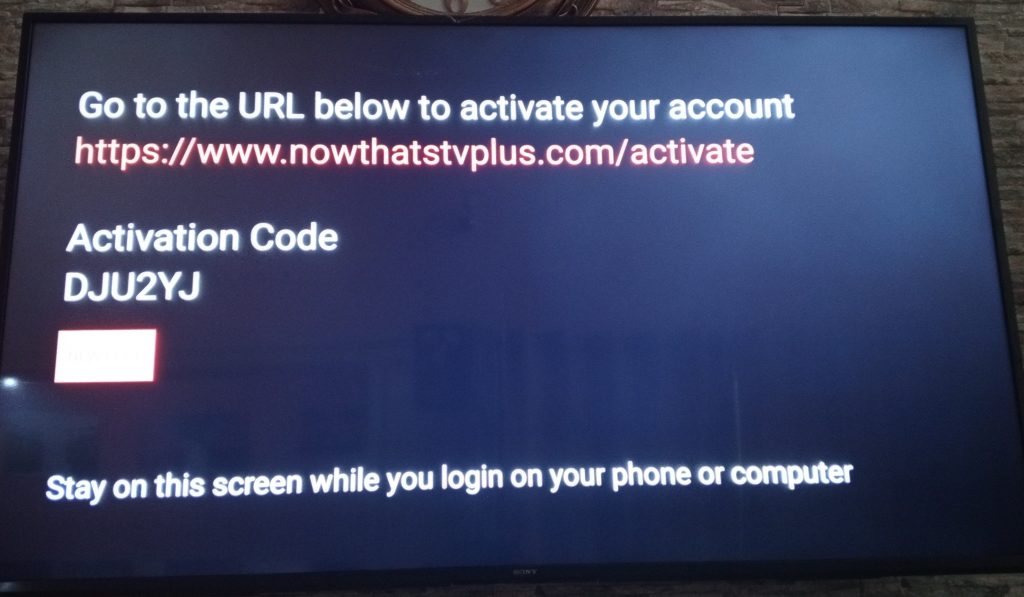
- Sign in to your account, then enter the activation code. Once the process is complete, your TV screen will refresh, allowing you to start watching content.
3. Apple TV
NowThatsTV Plus is also available on Apple TV devices. To activate the streaming application on your device:
- Open the Apple TV app store.
- Use the search function or Siri to find NowThatsTV.
- Select the app and choose Get or Buy to download and install it.
- Once the installation is complete, open the NowThatsTV app.
- Navigate to the Log in section; an activation code will then appear on your Apple TV screen.
- Go to nowthatstvplus.com/activate on your computer or mobile device.
- Sign in to your NowThatsTV Plus account, then enter the activation code from your TV screen.
- Go back to your TV and start streaming shows.
4. Amazon Fire TV
To activate NowThatsTV Plus on Amazon Fire TV:
- Go to the Amazon App Store on your Fire TV, or use the home screen search bar to find NowThatsTV.
- Select Download or Get to install the app.
- Once installed, open the app and navigate to the Log In section; an activation code will appear on your screen.
- On a computer or mobile device, go to nowthatstvplus.com/activate and sign in to your account.
- Enter the activation code and click Activate. Once the code is accepted, your TV screen will refresh.
- Go back to your Fire TV and start streaming shows.
5. Roku TV
NowThatsTV Plus is available on Roku. To set up the app on your TV:

- Go to your Roku Home Screen, then navigate to the Streaming Store or Channel Store.
- Search for Now Thats TV.
- Select Add App or Add Channel to download and install it on your Roku TV.
- Launch the app and navigate to the Log In section; a code will appear on your TV screen.
- Go to www.nowthatstvplus.com/activate and sign in to your NowThatsTV Plus account.
- Enter the activation code and click Activate.
- Go back to your Roku TV and start watching shows.
What if you’re unable to activate NowThatsTV Plus on TV?
You may encounter some issues when trying to activate NowThatsTV Plus on your TV. Below are some of the problems you might experience, and some simple troubleshooting tips to resolve them:
- Activation code not working: The code displayed on your TV screen is valid only for a short time. If the code you entered isn’t working, press “NEW CODE” to receive a fresh one.
- No activation code appears on the screen: Depending on your device type, the activation code might not appear on your TV screen. In this case, you can log in directly to your NowThatsTV Plus account on the TV.
- TV screen not refreshing: After you have entered the activation code, your TV screen will refresh and display a message “currently signed in as…”. If this does not happen, try rebooting or power cycling your TV, then repeat the activation process.
- Advanced support: If you are unable to activate your device, you can contact the NowThatsTV customer support team at NTTVSupport@NowthatsTV.net (email) for more advanced troubleshooting.
Is NowThatsTV Plus free to watch?
NowThatsTV Plus is a subscription-based streaming service, but it offers some free content. Therefore, as soon as you activate the app on your TV, you can watch some shows without a subscription.
However, to unlock the platform’s full library, you must purchase an active subscription. To do this, go to the NTTV subscription page and choose a plan.
The available plans include:
- Live TV Only (NTTV programming) at $1.99 per month.
- NowThatsTV Gold at $7.99 per month.
- NowThatsTV Silver at $5.99 per month.
Once you have purchased your plan, you can go back to your TV and start streaming the additional content.