Setting up Gaia on your Smart TV is usually easy once you understand one key point. Gaia support depends on the TV platform (OS) you’re using.
Below is the exact method for activating and setting up Gaia on your Smart TV, regardless of the OS you are using.

Part 1: Ensure you have an active Gaia account
You need an account before you proceed further. You could create one using your phone, tablet, or computer. We recommend these gadgets because they are usually easier than doing it on a TV.
Take these steps to do so:
- On your handheld device or PC, start by opening any updated web browser.
- Next, navigate to Gaia’s login page via its official link.
- Choose the option to sign up / view options. Once here, fill in your personal details.
- Follow all the instructions on the platform to create the account and, if needed, pay for a subscription.
- Finally, log in on your phone/PC to confirm that the details you used work.
Tip: If you have not memorized the credentials you have used, it is wise that you note them down somewhere safe. Better still, save it in a password manager. You’ll need these later in the procedure
If you already have an account, confirm it’s active. Of course, you should do this on phone/PC as it is easier:
- On your device, log in to Gaia.
- Go to My Account. This is usually from your profile/avatar area.
- Pay attention to your plan, billing details, and next renewal date. This confirms your subscription is active. This is only applicable if you’re billed directly by Gaia.
If you paid through Apple/Google: your billing might be managed through the App Store/Play Store instead of Gaia’s website. In that case, check your subscriptions in your Apple/Google account settings (this is a common reason people “can’t log in” on TV even though they paid).
Part 2: Get your TV “prepared”
Before moving any further, read and ensure you have the following prerequisites:
- Your set (or the streaming device you use) is connected to the internet. This could be either your Wi-Fi network or via an Ethernet cable.
- Your network should also be functional. Confirm by playing a music video.
- Keep your phone, PC, or the gadget you signed up with in the previous step nearby, as you will use it for activation code login.
Also note that you can only operate the Gaia platform on TV or streaming gadgets with these Operating systems:
- Apple TV
- Roku
- Android TV / Google TV
- Amazon Fire TV
Roku (Roku TV or Roku streaming device)
You can get this app (Channel) via these straightforward steps:
- Press your Home button on your set’s remote.
- Navigate to Streaming Channels (or your Channel Store).
- Tap on the option to Search Channels.
- Type Gaia using your remote and press OK.
- Once you see it, select it.
- Press on Add channel.
Amazon Fire TV / Fire Stick
For the Amazon OS platform, do the following:
- From your Fire TV set home screen, go to Find (or the search icon).
- Search for Gaia.
- Select the Gaia app, then choose Download / Get.
- Open the Gaia app after installation.
Android TV / Google TV
Here is the procedure:
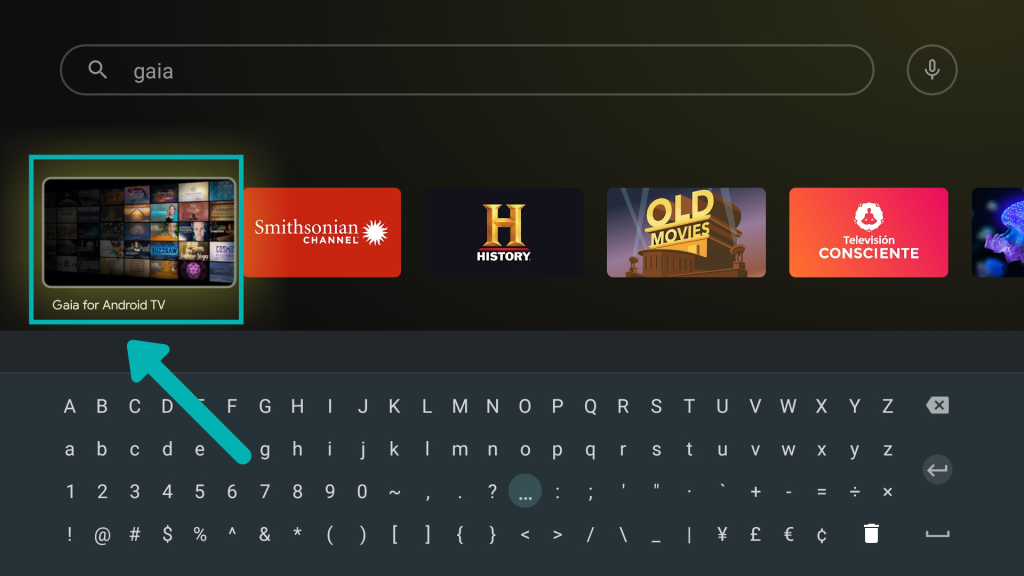
- From your set’s home screen, open Apps or the Google Play Store.
- Use Search and type Gaia.
- Select Gaia and choose Install.
- Open your Gaia app after the process is done.
Apple TV
For Apple OS televisions:
- Open the App Store on Apple TV.
- Search for Gaia.
- Select Gaia and choose Get / Install.
- Open the Gaia app.
Part 3: How to activate and set up Gaia on your Smart TV
Once Gaia is installed and opened, you’ll log in using one of two methods:
- Email & password (type them on the TV), or
- Activation code
Option A: Log in with email and password
This works on all supported TV platforms. However, we do not recommend it. This is because typing using a remote usually feels slow. If you prefer this approach, here is how to go about it:
- Open the Gaia app on your set.
- Select Log In.
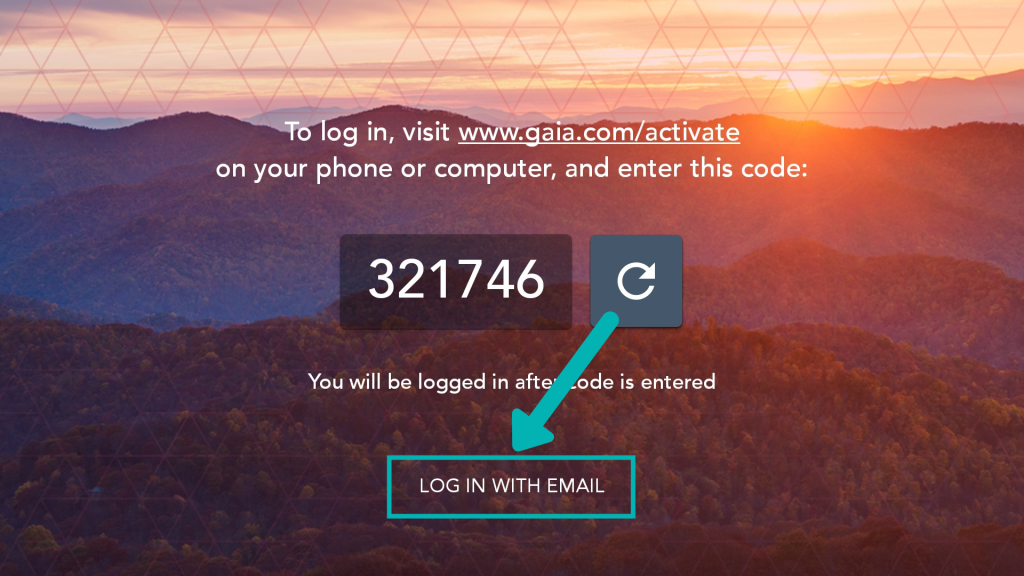
- Choose Log In with Email (wording may be slightly different).
- Carefully type:
- Your Gaia email address
- Your Gaia password
- Select Log In.
- Wait a few seconds for your library/home screen to load.
Option B: Log in with the activation code
This is usually the easiest method because you don’t have to type a long password on the TV. Here is how to use it:
- Open Gaia on your TV.
- Select Log In.
- You will see:
- a short activation code, and
- the website www.gaia.com/activate.
- On your phone or computer:
- open a browser,
- go to gaia.com/activate,
- log in if asked,
- enter the code shown on your TV.
- Keep the TV on that code screen.
- Your TV should log in automatically shortly after (often within ~30 seconds).
If the code doesn’t work
- Go back on the TV and select Log In again to generate a new code.
- Then try the new code on gaia.com/activate.
Smart TV OS where you may NOT find a Gaia app (and what to do)
Some “Smart TVs” don’t have the Gaia app in their built-in app stores. Common examples are Samsung and LG models.
You still have reliable options:
Option 1: Use a supported streaming device
This is the simplest long-term solution because you’ll install Gaia on the streaming device instead of the TV’s app store. We recommend that you buy any of the following TV sticks or boxes:
- Roku device
- Apple TV box
- Amazon Fire TV Stick or boxes
- Chromecast with Google TV, Android TV box, or sticks
Once you have the right gadget:
- Plug the streaming device you have selected into your TV via HDMI.
- Go to the settings of your TV input/source. Set it to that HDMI port.
- Install and activate Gaia on the streaming device (using the install steps we covered earlier).
Option 2: Cast or AirPlay
For this alternative, you do not need to purchase any extra streaming sticks or boxes for your set. Use the following technique:
- Connect your handheld device to your house network.
- It needs to be on the same Wi-Fi as your smart TV that does not have the Gaia app on its store.
- Open the streaming platform on your phone and start playing a video.
- Use casting options for your specific TV OS.