To activate Fandango, first install the Fandango at Home app. Next, get the activation code that appears on your TV or streaming device. Then, go to the official activation page in a browser and enter the code to link your device to your account.
You can activate Fandango on almost any streaming platform that has the Fandango at Home app. Once activated, your device connects to your Fandango account, letting you browse, rent, buy, and watch digital movies and TV shows right on your device.

After activation, you can access your Fandango purchases and rentals on the device. The app will refresh automatically when activation is finished.
What you need before activating Fandango on any streaming device
Before you start, make sure you have the following:
- A Fandango account.
- A second internet device (PC, phone, or tablet with a browser).
- A reliable internet connection for both your streaming device and your second device.
- Use your device’s remote to move through the activation screen.
You will also need the activation code, which appears during the activation steps.
General activation flow of Fandango on all devices
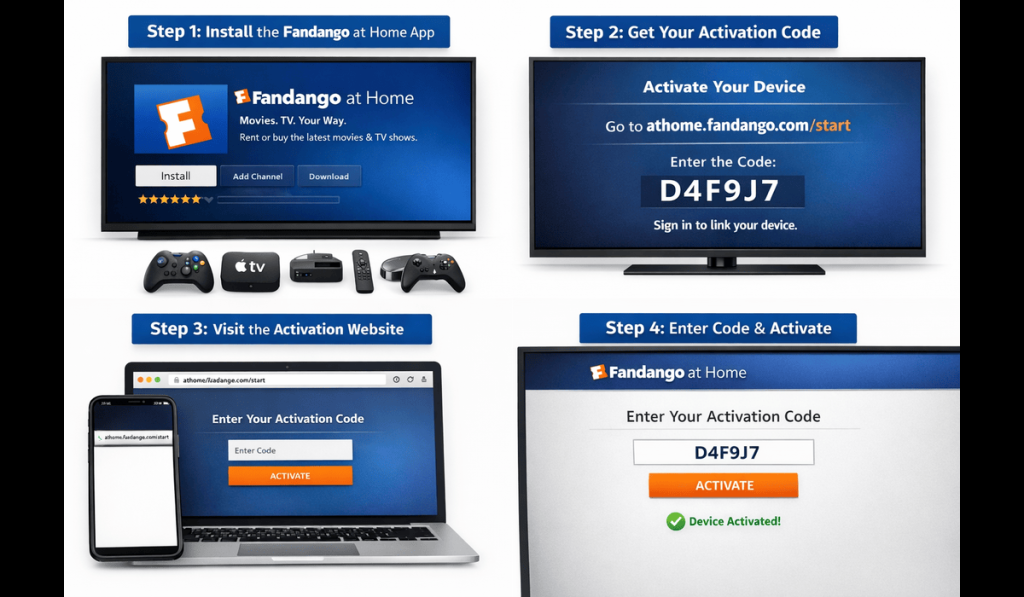
Activating Fandango is simple, no matter what device you use. Here are the general steps:
- Install the Fandango at Home App by going to the device’s app store and searching for “Fandango at Home.” If it is available, install it.
- Open the app and sign in.
- A unique activation code will appear on your TV screen.
- Open a new browser window on another device.
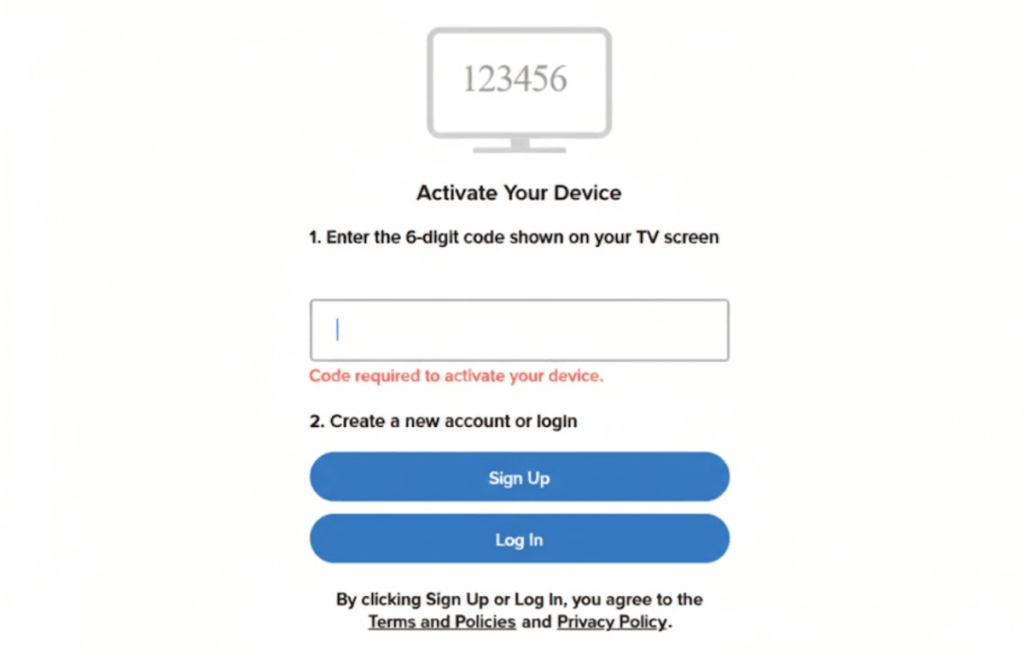
- Go to the official activation page at https://athome.fandango.com/start.
- You can also use the activation screen in your Fandango app.
- Sign in to your Fandango account in the browser using the same login details as on your streaming app.
- Type the code from your TV into the browser on the activation site.
- Click Activate.
The app on your streaming device will refresh and sign you in automatically.
How to activate Fandango on Roku devices
If you need steps for a specific device, here’s how to activate Fandango on Roku devices.
- Make sure your Roku is connected to the internet.
- From the Roku home screen, open the Fandango at Home channel.
- You can also add it from the Channel Store.
- Sign in to the app to get an activation code.
- Complete activation using a browser.
On some Roku Smart TVs, Fandango may not appear as a standalone channel. In that case, locate the application under the Movies & TV by Fandango section.
How to activate Fandango on Amazon Fire TV / Fire Stick
If you have an Amazon Fire TV or Fire Stick, follow these steps to activate Fandango:
- Open the App Store on your Fire TV.
- Search “Fandango at Home.”
- Install and launch the app.
- Sign in to generate an activation code.
- Complete activation in a browser using the code.
According to some user reports, the app may not appear on specific Fire TV models (like Fire TV Select). The best fix is sideloading it as an advanced workaround.
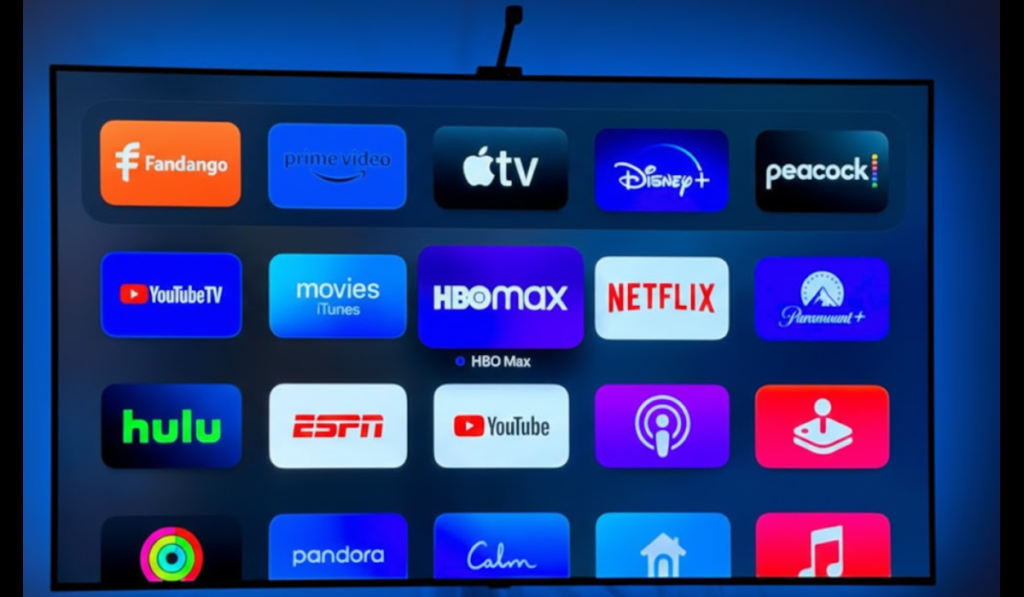
How to activate Fandango on Apple TV
If you have an Apple TV, follow these steps to activate Fandango:
- Open the App Store on your Apple TV.
- Download and open Fandango at Home.
- Sign in to get your activation code.
- Go to https://athome.fandango.com/start.
- Sign in to your Fandango account in the browser.
- Use the same login details as you do on the streaming app.
- Type the code from your TV.
- Click Activate.
Once activation is complete, you can start watching shows and movies.
How to activate Fandango on Android TV or Google TV
To activate Fandango on Google TV or Android TV, follow these steps:
- On Android or Google TV, open the Google Play Store and install Fandango at Home.
- Launch the app after installing.
- After launching, sign in to your account.
- You will see an activation code.
- Visit the activation site at https://athome.fandango.com/start.
- Enter the code.
If the native app is not available, you can also cast from the mobile app directly to your TV using Google Cast.
How to activate Fandango on other Smart TVs (Samsung, LG, Sony, etc.)
Most newer smart TVs support the Fandango at Home app:
- Navigate to the TV’s app store.
- Install the Fandango at Home app and open it.
- Sign in to display the activation code.
Complete the activation in a browser, then start watching content.
How to activate Fandango on Game Consoles (PlayStation & Xbox)
Depending on your game console, you may be able to watch movies and TV shows on Fandango. First, you need to activate it:
- Download the Fandango at Home app from your console’s store (PlayStation Store, Microsoft Store).
- Launch and sign in to get your activation code.
- Complete activation via browser.
Fandango works on PlayStation 5 (up to 4K UHD), Xbox One, and Xbox Series X/S. You can stream, rent, or buy movies and TV shows directly on these consoles.
Troubleshooting common Fandango activation issues
You might run into some issues when activating Fandango on your device. Here are common problems and how to fix them:
App not available or not found
This problem can happen because not all devices list Fandango at Home in their app store. If you can’t find the app, check if your device supports it. Some older smart TVs or streaming sticks do not support the app.
App freezes or does not load
On Apple TV and some other TVs, users sometimes report freezing or login problems during activation. To fix this, uninstall the app from your device, reinstall it, and try again.
No activation code appears
If you do not see an activation code in the app, make sure you chose the Sign In option instead of browsing as a guest. If the code still doesn’t appear, check for an app update or reinstall the app. Some unsupported devices may not generate a code at all.
For best results, make sure both your streaming device and the device you use for activation are on the same network. If activation fails, try using a private or incognito browser window to avoid cookie problems.
Update the Fandango at Home app to the latest version before you try to activate it. Fandango activation is device-specific. Once you activate a device, it stays linked until you remove it from your account or deactivate it yourself.