To turn subtitles on or off on Paramount Plus, use the CC button. You can also use the speech bubble icon inside your video player.
Also, you should note that subtitles and closed captions appear when available. Most of the content here includes them.
Below are ways to turn On/Off subtitles on Paramount Plus.
How to turn On/Off subtitles on Paramount Plus
The main ways to control your subtitles are as follows:
On a mobile phone
You do not usually need to leave the app to change captions. Use this procedure:
- Start the video you want to watch.
- Tap the screen once so the video controls appear.
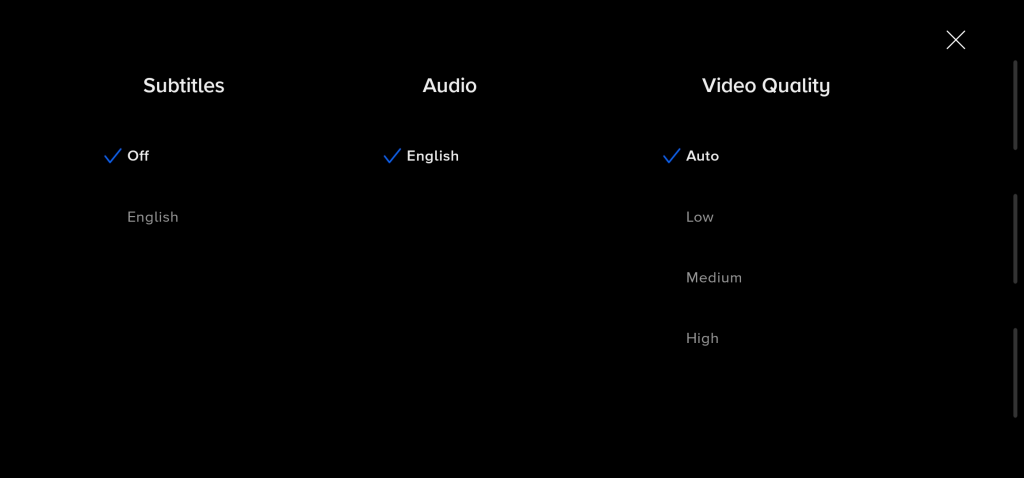
- Tap the CC icon.
- Under Subtitles, tap the subtitle option you want.
- To turn subtitles off, tap the selected subtitle option again or choose Off if shown.
On Roku
Roku is different because captions are often controlled through its own caption menu instead of only inside the app. Here is the procedure for this:
- Start playing the video.
- Press the star (*) button on your Roku remote.
- Use the arrow buttons to highlight Captions or Captions Mode.
- Choose On, Off, or On replay depending on what you want.
- Exit the menu and continue watching.
On Fire TV
On Fire TV, subtitle control is handled in the app’s settings. Use these steps:
- Go to Settings.
- Scroll right to CC Closed Captions.
- Select Display.
- Turn captions On or Off.
On Apple TV
Here, you use Apple TV’s accessibility settings and, through the player’s CC icon, which opens the Subtitles and Audio page. Use these steps from the Apple TV system menu:
- On Apple TV, open Settings.
- Go to General.
- Go to Accessibility.
- Select Closed Captions and SDH.
- Turn it On or Off.
Use these steps during playback:
- Start playing a video on Paramount Plus.
- Swipe down on your remote’s touch surface if needed to open the info panel.
- Open the CC or Subtitles and Audio area.
- Choose the subtitle option you want, or turn it off.
On Android TV or Google TV
Here, you can turn on captions on Android TV from the video player by selecting the CC button. The process is similar to phones and tablets, but you use the remote to open the player controls and move to the CC option.
On Samsung smart TVs
On supported Samsung TVs, just use the CC button next to Watch Now. Here is how:
- Select the show or movie you want to watch.
- Look for the CC button next to Watch Now.
- Select it to turn captions on.
- Use the same control again to turn captions off.
On LG smart TVs
For this type, use your TV settings to turn on Closed Caption and adjust the caption style. Here is the procedure:
- Open the TV or app Settings.
- Go to Closed Captions.
- Choose On or Off.
- If you want, change the caption style from the same menu.
When casting with Chromecast
If you are casting, here is how to turn On/Off subtitles on Paramount Plus:
- Open the video controls.
- Tap or click the Closed Captions icon.
- Turn captions On or Off.
- If you are casting from a browser, make sure the closed captions switch is also set correctly there.
On Xbox
Xbox handles captions through the console’s accessibility settings. Use these settings:
- On Xbox, open System.
- Go to Settings.
- Choose Ease of Access.
- Select Closed captioning.
- Turn closed captioning On or Off.
- Return to Paramount Plus and test the video again.
On PS5
For this, the settings are found in the console’s accessibility menu. Here is how to turn On/Off subtitles on Paramount Plus if you have a PS5:
- Open the PS5 Quick Menu.
- Go to Accessibility.
- Open Closed Captions.
- Check or uncheck Display Closed Captions depending on what you want.
- Return to Paramount Plus and keep watching.