Pairing a TCL remote sounds simple, but it can feel confusing because TCL TV can mean several different TV systems.
There is TCL Roku TV, some use Google TV, some use Android TV, and some use Fire TV. The pairing process is not identical, and that is the main reason you are probably stuck.
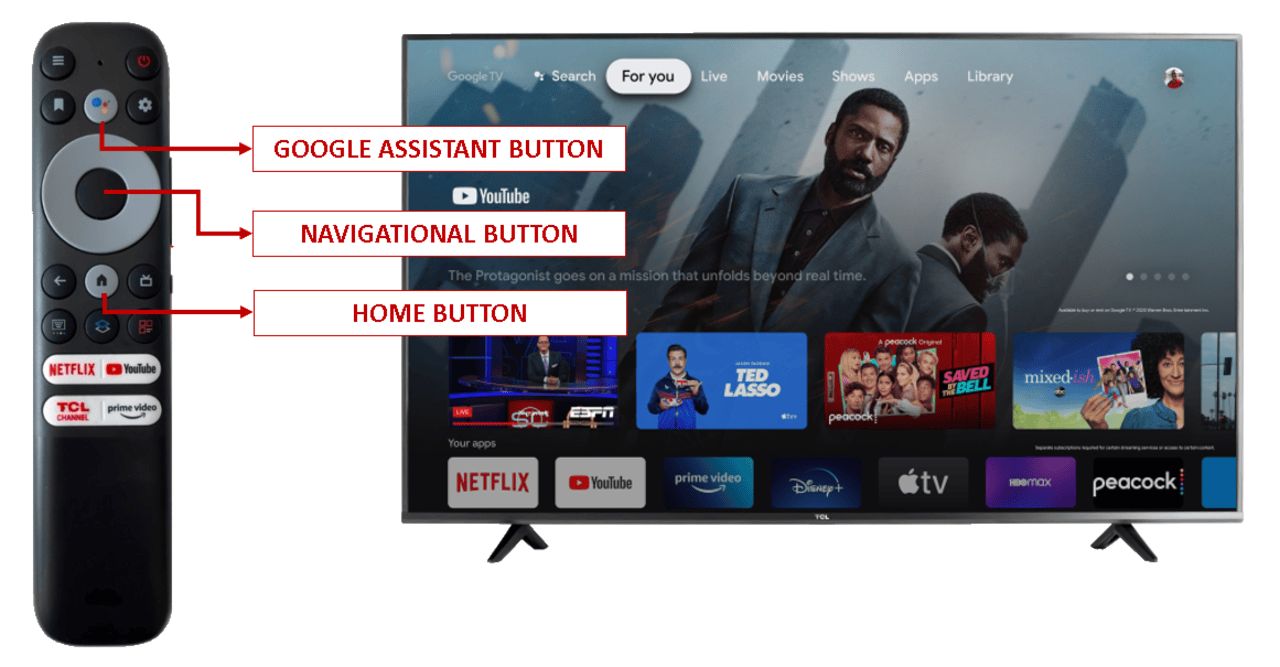
Here is a complete handbook on how to pair your TCL remote with your TV for all these operating systems.
First, know the kind of TCL TV and remote you have
Before you try any button combo, do this quick check. It saves a lot of time.
To know your TV OS and remote type:
- Look at the Home screen logo:
- If you see “Roku” and Roku-style tiles, it is a TCL Roku TV.
- If you see “Google TV” profile icons and Google recommendations, it is TCL Google TV.
- If you see “Android TV” or a simpler Android-style home screen, it is TCL Android TV.
- If you see “Fire TV” style menus, it is a TCL Fire TV.
- Look at the TV model info in Settings: They usually show Roku TV, Google TV, Android TV, or Fire TV.
- Look at the remote
- If it has a microphone or a voice button, it uses Bluetooth or RF. This type usually needs pairing.
- If the device is a very simple remote with no mic and no pairing button, it is IR and does not need pairing.
1. TCL Roku TV
If you have identified this as your OS, use these steps:
- Turn on the TV and stay on your Home screen area
- Find the Roku’s pairing button
- Open the battery compartment.
- Look for a small button labeled PAIR or a small round pairing button.
- Some remotes have this on the back instead.
- Press and hold it. You should only stop when the pairing light starts flashing. This will take about 10 seconds.
- Once this happens, you will see a pairing prompt on the TV. Follow it until it confirms pairing.
If you can still control the TV with another remote or the Roku mobile app, you can pair a second remote from settings without locating the button we used above. Here is how:
- Press Home on your working remote.
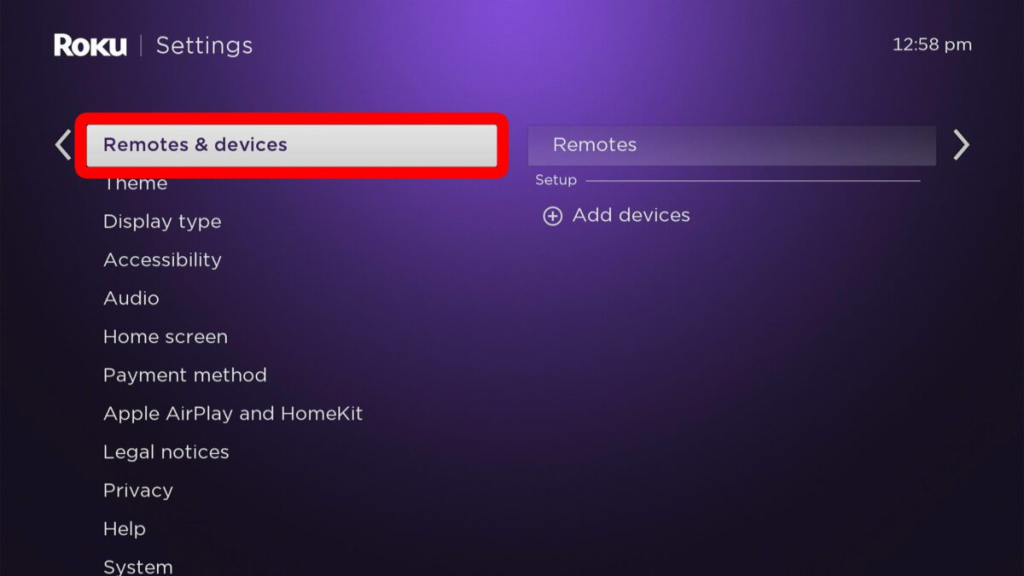
- Go to Settings.
- Go to Remotes & devices (wording can vary slightly).
- Choose “Set up a new device” from the menu or so.
- Select Remote and follow the on-screen instructions you’ll be given.
2. TCL Google TV
On Google TV models, keep your remote within about 3 feet (1 meter) of the TV during the following procedure:
- Press and hold HOME and OK.
- Continue holding them simultaneously.
- Do not let go when you see the pairing animation or a pairing message on the TV.
- Wait till you are told the process was successful. This only takes less than 30 seconds.
3. TCL Android TV
For Android TV, you also need to stand within about 3 feet of the TV, then:
- Press and hold HOME and OK together to start pairing.
- Wait for the TV to confirm pairing.
If you can reach the Android TV Bluetooth menu, you can also add devices from settings:
- Press Home to go to the home screen.
- Open Settings.
- Go to Remote and Accessories.
- Select Add Accessory.
- Put the remote into pairing mode.
- Choose the remote when it appears.
4. TCL Fire TV
If you have confirmed this is your OS your gadget is running, use this procedure:
- Be close to your set, then press and hold the Home button.
- Keep holding until you see a message on screen that indicates pairing, or until the remote connects.
If it does not pair:
- Remove the batteries from your remote.
- Wait 30 seconds.
- Put the batteries back in.
- Press and hold Home again.