When your Hisense Roku TV won’t turn on, it usually falls into one of a few simple buckets: power isn’t reaching the TV consistently, the TV is stuck in a software “hang”, the TV is booting, but you can’t see the picture, or there’s a hardware fault.
The good news is that a lot of “won’t turn on” cases are fixable at home with safe steps that don’t require tools or technical skills.

Various ways to fix a Hisense Roku TV that won’t turn on
Do these procedures one by one until your set is okay:
1. Do a full power cycle
Most of the time, your set isn’t truly dead in that sense. Roku OS is just frozen in a bad state. This process clears temporary software/processor glitches and resets your TV’s internal power state. Do the following:
- Unplug your set from the wall outlet. Don’t just turn off a power strip.
- Press and hold the TV’s physical power button for a minute.
- Plug back your Hisense and turn it on.
2. Confirm the outlet and power path
A bad outlet, a loose plug, a faulty extension, or a failing power strip means your set doesn’t receive power, and hence it looks dead. Do the following:
- Use your phone charger or a lamp to confirm that the specific wall outlet or power strip port is indeed working.
- Try a different wall outlet; if possible, we recommend a different room. If you have mounted your Roku set on the wall no need to unscrew it. Instead, use a long power strip to get the power.
- Where possible, bypass your surge protector or extension cord.
- Your Roku TV power cord must be pushed in firmly. That is both on the TV and the wall.
- Look for damage on the cord, and replace it.
3. Try the TV’s physical power button
Your set might be fine, but the remote isn’t working. This could be from dead batteries, an unpaired remote, a wrong remote, and so on. Use these steps to remove the remote as a variable:
- Find the TV’s power button. This is often under the bottom edge, side, or back.
- Tap on it once or long-press using your finger.
If your Hisense Roku gadget turns on this way, the issue is most definitely its remote (see the fix below).
4. Fix remote issues
If your TV won’t turn on from the remote, the set may still be okay. Roku TVs can use either:
- IR remotes (no pairing needed, must be pointed at the TV), or
- Voice/enhanced remotes (need pairing).
Using the wrong one (especially if you have multiple Roku devices) is a common issue. Fix this through the following:
- Put fresh batteries in the Roku remote.
- If your remote is IR: You must stand close, point at the TV’s sensor area, and press Power.
- If your remote is voice/enhanced: re-pair it after the TV shows signs of life. You’ll usually need the TV on to complete the pairing.
Tip: If your set is already on the same Wi-Fi network it used before, the Roku mobile app is a lifesaver, as you can use it to turn the device on. However, if the TV was initially fully off and not on Wi-Fi, you’ll need the physical TV button or an IR remote first.
5. Disconnect everything external
A broken HDMI device (console, box, stick) or a USB device can cause startup conflicts or black screens. Having no gadgets connected to your Hisense set lets it boot with zero external interference. Use this process:
- Unplug all HDMI cables.
- Remove USB drives.
- Unpair all soundbar connections and everything.
- Only power should be connected.
- Power cycle again (from our procedure number 1).
- Try turning the TV on.
- If it turns on, reconnect devices one at a time, testing after each one to find the trouble device.
6. Look for signs the TV is “on but you can’t see it.”
Your TV could actually be on, but the backlight has failed. In this case, the screen looks black even though the menus are faintly there. Here is how to check without opening your set:
- Turn the TV on (or try to).
- Go to a darker room.
- Shine your phone flashlight close to the screen at an angle.
- Look closely for a faint image, logo, or menu.
- If you see faint images, your backlight is the problem, and the set needs professional repair.
- If you see nothing at all, it means you have a deeper power/mainboard issue.
7. Factory reset using the physical RESET button
A factory reset could bring your “dead” set back. This will likely work if the underlying cause is a glitch, a freeze, or corrupted settings. Many Roku sets have a physical reset button/pinhole. Hisense also mentions a “handy little button” on some newer Roku models for resetting.
Here is how to do it:
- Ensure you know your passwords to streaming sites and also your Wi-Fi.
- Find the RESET button.
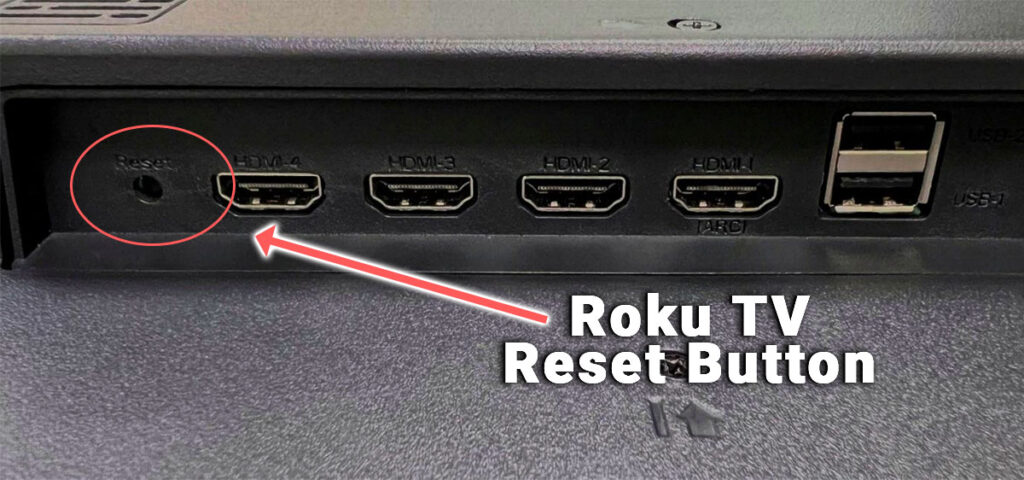
- With your Hisense Roku gadget powered on (or plugged in), press and hold this button.
- Release after 30 seconds.
- The TV should restart and eventually show the initial setup screen.
Important: If you’ve tried the steps above and you still see any of these, do not open the TV. Go to warranty/service to get help.